

Order Buzzer help guide
Order Buzzer plays a sound and shows a popup inside your Shopify admin the moment your store gets a new order, so your team never misses one.
Last updated:
- Free to install and use, with nothing else to set up.
- Read-only access to orders. It cannot change, cancel or create them.
- Orders are read live from Shopify and never stored on our servers.
Install the app#
- Open Order Buzzer on the Shopify App Store and click Install.
- Review the permissions and approve. Order Buzzer only asks to read orders. It can't change, cancel or create them.
- The app opens inside your Shopify admin. You'll find it any time under Apps › Order Buzzer.
Order Buzzer is free, and there's nothing else to set up.
Start listening#
- Open Order Buzzer and click Start listening.
- If your browser shows Enable sound, click it once. Browsers don't allow websites to play sound until you click on the page.
- Click Test sound or Send test alert to check you can hear it.
Keep the Order Buzzer tab open. Shopify closes an app when you open another admin page in the same tab. Pin Order Buzzer in its own browser tab, or put it on a second screen, and do your other work in another tab. It still rings when its tab is in the background.
When a new order comes in#
Within a few seconds of a new order, Order Buzzer:
- plays your chosen sound,
- shows a popup with the order number, products, total and customer name,
- vibrates the device, on phones and tablets that support it.
In the popup:
- Acknowledge marks the order as handled and stops the sound. If several orders arrived together, use Acknowledge all.
- Skip closes the popup without marking the order as handled. It stays in the Waiting list.
Acknowledged orders are shared across your team, so everyone using Order Buzzer in your store sees what's already been handled.
Customer names appear only when Shopify has approved the app's access to them. Until then, alerts show the order without a name.
The Listener page#
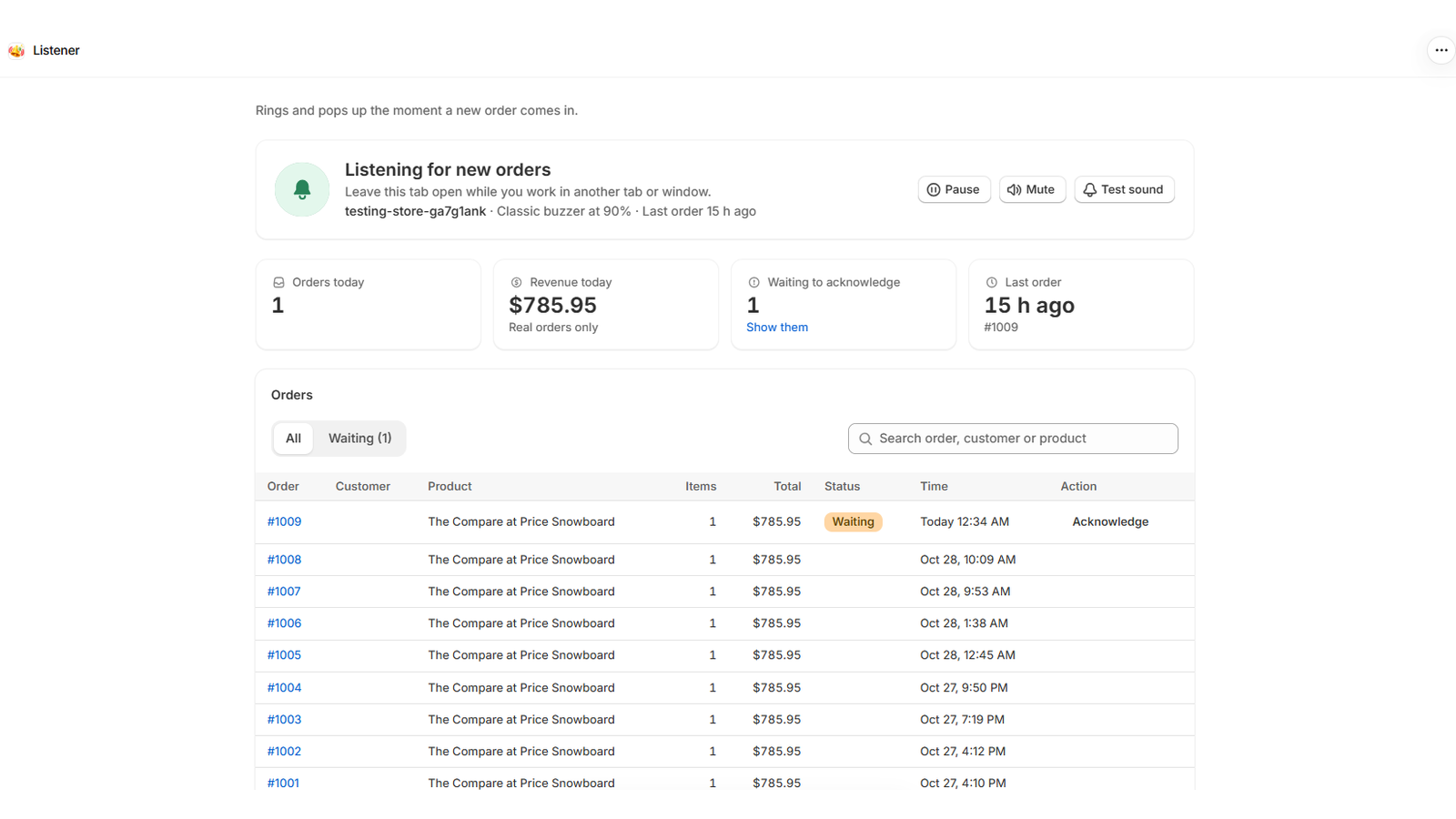
The main page shows:
- Listener status: whether the app is listening, paused or muted, which sound is set, and when the last order came in.
- Buttons: Pause or Start listening, Mute or Unmute, and Test sound.
- Today at a glance: orders today, revenue today (real orders only), orders waiting to be acknowledged, and the last order.
- Orders list: recent orders, read live from Shopify. Use All or Waiting to filter, and search by order number, customer or product.
Pause stops checking for new orders. Mute keeps checking and showing popups, but without sound. Pause and Mute only affect the device you're on.
Choose a sound#
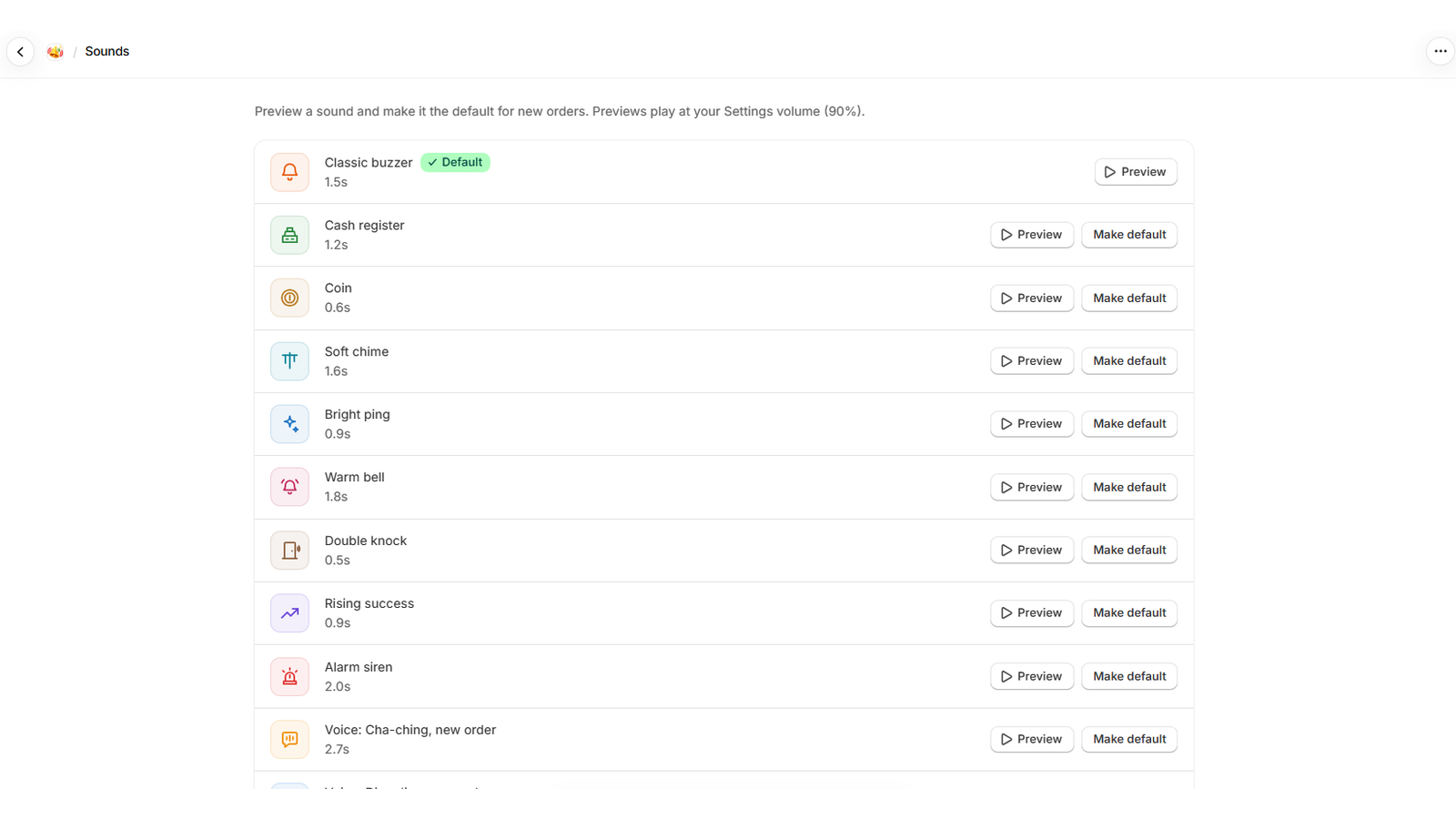
Go to Sounds to hear and pick an alert. There are 14 built-in sounds, including:
- Classic buzzer, Cash register, Coin, Soft chime, Bright ping, Warm bell
- Double knock, Rising success, Alarm siren, Marimba jingle, Kitchen bell, Service bell
- Voice alerts: "Cha-ching, new order" and "Ding ding, new order"
Click a sound to preview it, then set it as your default.
Settings#
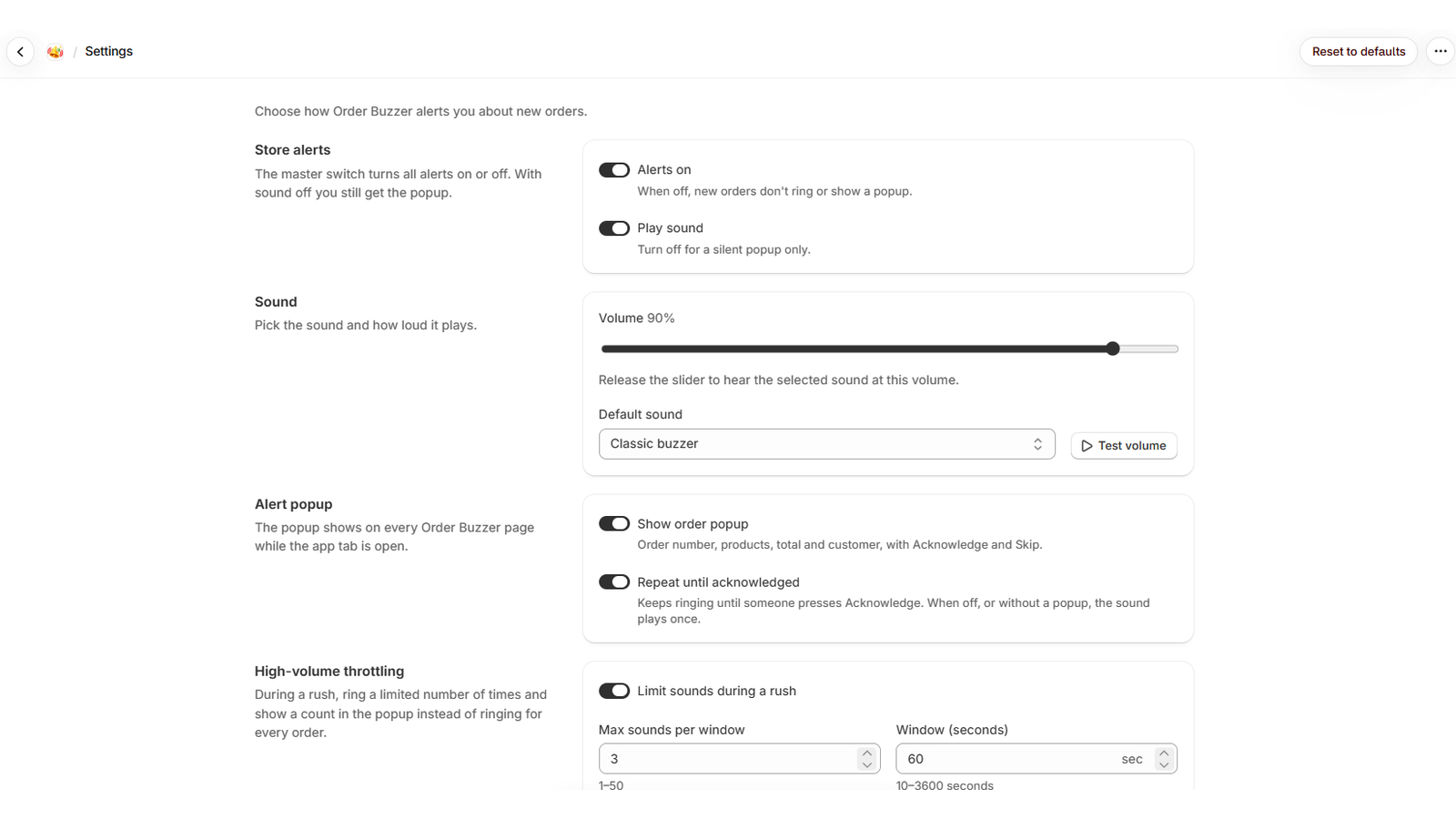
| Setting | What it does | Default |
|---|---|---|
| Alerts on | Turns all alerts on or off. When off, new orders don't ring or show a popup. | On |
| Play sound | Turn off for a silent popup only. | On |
| Volume | How loud the alert plays, from 5% to 100%. | 90% |
| Default sound | The sound used for new orders. | Classic buzzer |
| Show order popup | Shows the order number, products, total and customer, with Acknowledge and Skip. | On |
| Repeat until acknowledged | Keeps ringing until someone presses Acknowledge. When off, or without a popup, the sound plays once. | On |
| Limit sounds during a rush | Stops the alert from ringing nonstop when lots of orders arrive at once. | On |
| Max sounds per window | The most sounds played within the time window (1 to 50). | 3 |
| Window (seconds) | The length of that time window (10 to 3600 seconds). | 60 |
Settings are saved for your whole store, so every device uses the same ones.
Tips for busy stores#
- Use a separate browser tab, or a tablet at the packing desk, just for Order Buzzer.
- Keep Limit sounds during a rush on during sales so the alert doesn't ring nonstop.
- Use the Waiting filter at the end of a shift to check nothing was missed.
- Make sure the device's own volume is up and it isn't on silent or Do Not Disturb.
Troubleshooting#
I don't hear anything
- Click Enable sound if you see it, or click anywhere on the Order Buzzer page once.
- Check the app isn't muted, and that Play sound is on in Settings.
- Check your computer or phone volume, and that the browser tab isn't muted.
- Click Test sound to check.
Alerts stopped
- Check the Order Buzzer tab is still open. If you opened another admin page in the same tab, reopen Order Buzzer from Apps.
- Check the status says Listening, not Paused.
- If your computer went to sleep, wake it and reopen the tab.
Customer names don't show
Names appear once Shopify has approved the app's access to customer names. The rest of the alert works without them.
Phones and tablets
Keep the Shopify admin open in the browser with Order Buzzer on screen. Phones may pause web pages when the screen locks, so keep the screen on while you want alerts. Order Buzzer asks the screen to stay on where the device allows it.
Frequently asked questions#
Does Order Buzzer cost anything?
No, it's free.
Can it change my orders?
No. It only has read-only access to orders.
Does it store my orders or customer data?
No. Orders are read live from Shopify each time. Your settings and acknowledged orders are saved inside your own Shopify store.
Can my whole team use it?
Yes. Each staff member can open Order Buzzer on their own device, and acknowledged orders are shared.
Does it ring for test orders?
Yes, for any new order in your store. Send test alert lets you try it without creating an order, and test alerts aren't counted in your revenue.
Does it work when the browser is closed?
No. Order Buzzer runs in your Shopify admin, so keep its tab open while you want alerts.
For how the app handles data, see our privacy policy.
Uninstall#
In your Shopify admin, go to Settings › Apps, find Order Buzzer and click Uninstall. We delete your store's connection details from our server, and Shopify removes the app's saved settings from your store.
Get help#
Email support@optixfusion.com with your store address and a short description, plus a screenshot if you can. We'll get back to you as soon as we can.