

Perkly help guide
Everything you need to set up and run Perkly: Loyalty & Referrals on your Shopify store, from install to a live rewards program and every setting after that.
Last updated:
- Points, rewards and referrals in one app, live in about five minutes.
- Works with any Online Store 2.0 theme through an app embed. No theme code is edited.
- Rewards are one-time Shopify discount codes that only that customer can use.
Getting started#
Perkly: Loyalty & Referrals lets your customers collect points when they shop, turn those points into discounts and earn rewards for referring friends. This guide takes you from install to a live rewards program in about five minutes.
Before you start
- You need a Shopify store with the Online Store sales channel.
- Perkly works with any Online Store 2.0 theme (Dawn, Horizon and most themes from the Shopify Theme Store).
- Customers need a customer account at your store to spend points. Guests can still see the rewards and are invited to sign up.
Step 1: Install Perkly
- Open the Perkly listing on the Shopify App Store and click Install.
- Review the permissions and click Install again.
- Perkly opens inside your Shopify admin. There's no separate login or password.
Step 2: Complete the setup guide
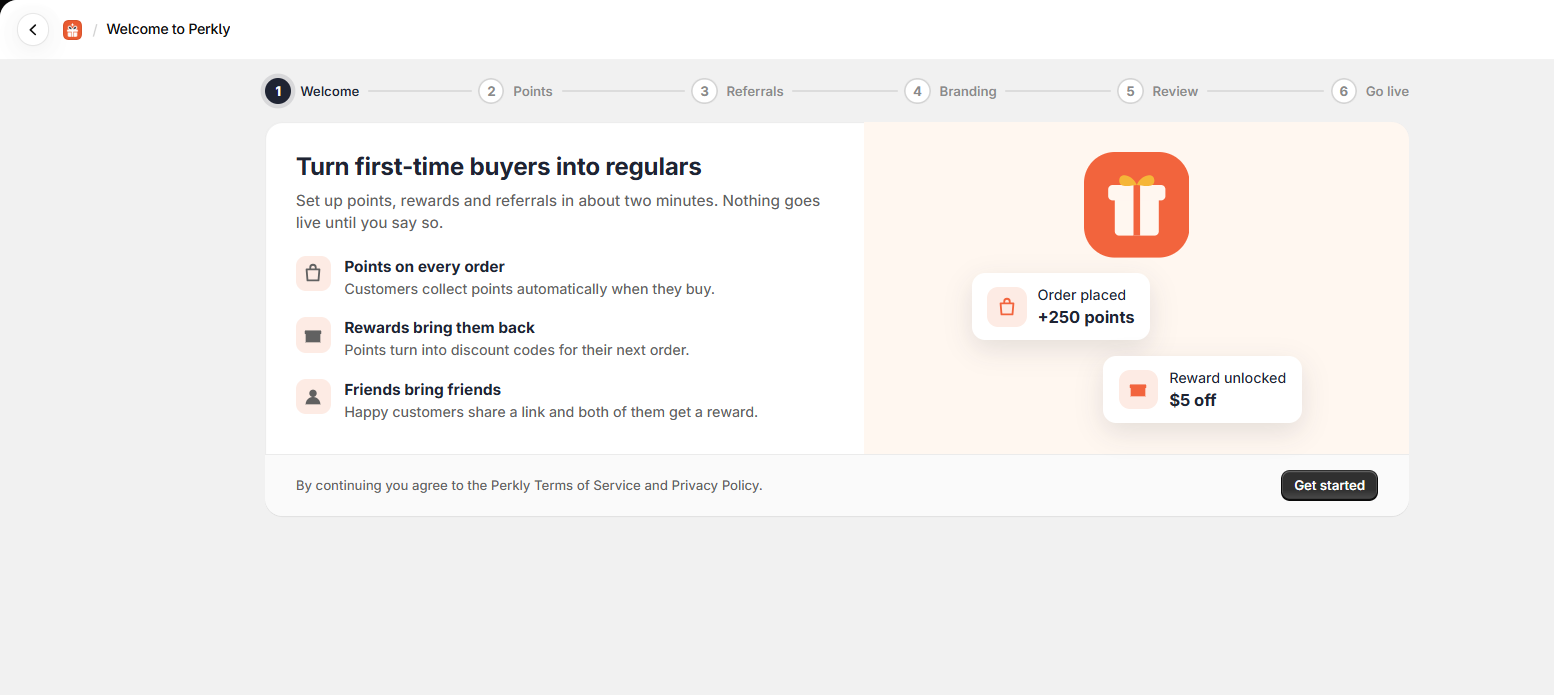
The first time you open Perkly, a short setup guide walks you through the basics. You can change everything later.
| Step | What you choose |
|---|---|
| Welcome | An overview of how points, rewards and referrals work. Click Get started. |
| Points | How many points customers earn per order (for example 5% back) and how rewards work. |
| Referrals | What a referred friend gets and what the customer who referred them earns. |
| Branding | Your main colour and program name, so the rewards match your store. |
| Review | A summary of everything you picked. |
| Go live | Turn on Perkly in your theme and launch the program. |
Step 3: Turn on Perkly in your theme
Perkly shows in your store through a Shopify app embed. Nothing is added to your theme code, and uninstalling removes it cleanly.
- In Perkly, go to Home and click Open theme editor.
- The theme editor opens on App embeds. Turn on Perkly rewards.
- Click Save.
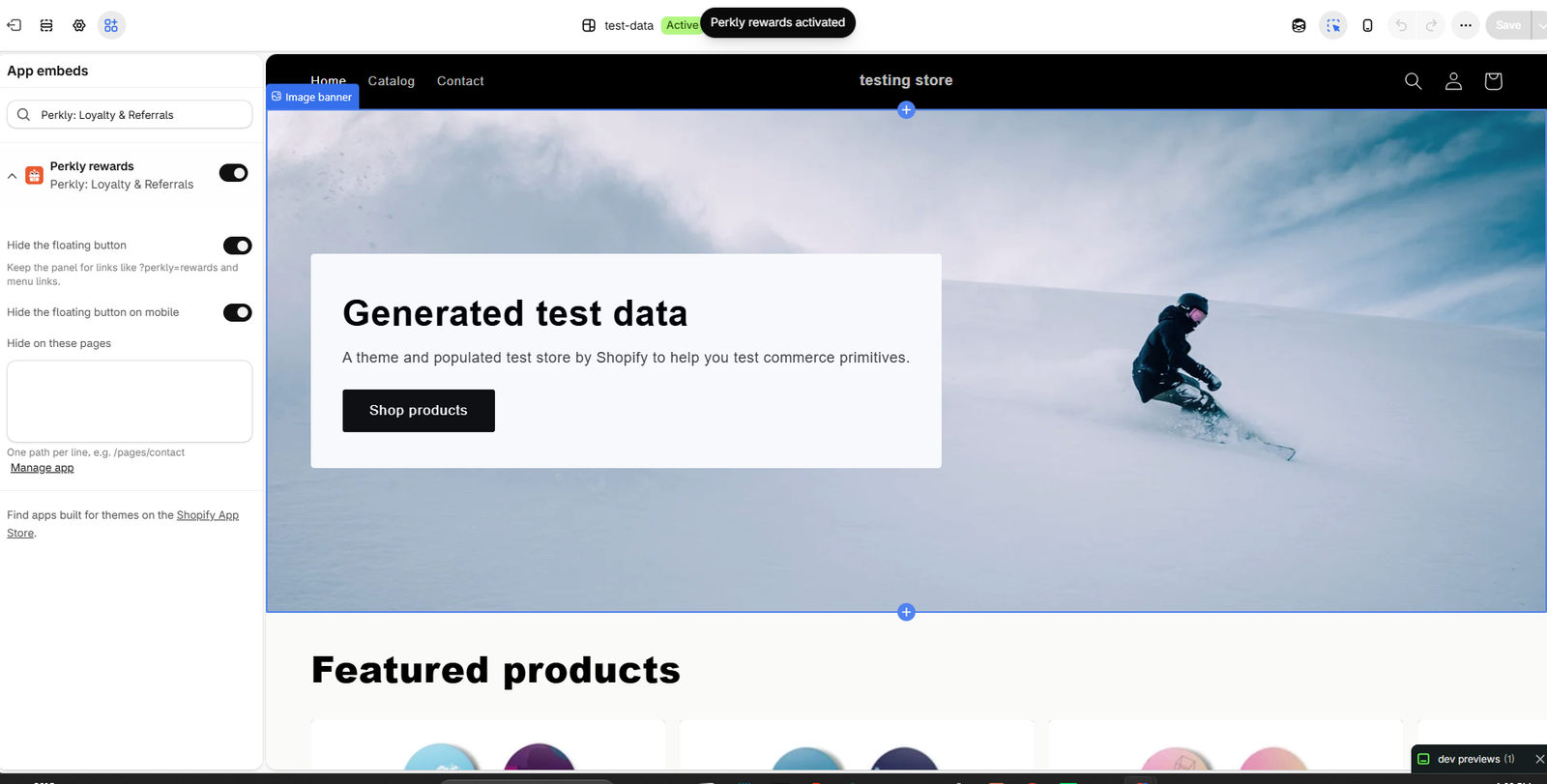
Back in Perkly, the Home page shows Embed enabled within a few seconds.
Tip: The app embed has two more options: Hide the floating button (keep the rewards panel for links and menus only) and Hide the floating button on mobile. Leave both off if you want the rewards button on every page.
Step 4: Check your Home page
Home shows the status of your program, the last 30 days of results and recent activity.
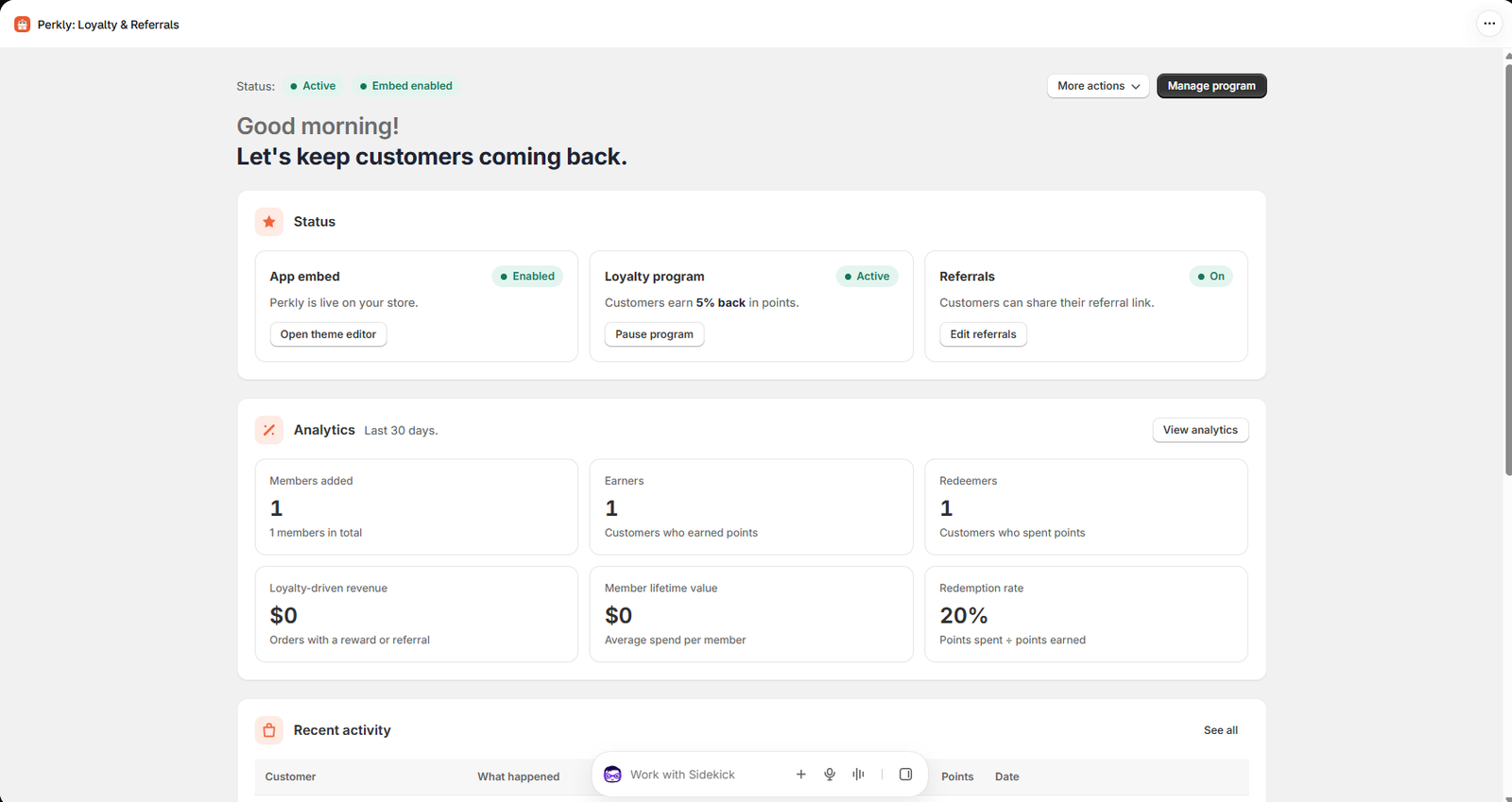
- Status: whether the app embed, the loyalty program and referrals are on. Each card has a button to fix or change it.
- Analytics: members added, customers who earned and spent points, loyalty revenue and redemption rate.
- Recent activity: the latest points earned and rewards redeemed.
- More actions: pause the program, open the theme editor or go to settings.
What happens next
Once the program is active:
- Shoppers see the Rewards button on your store and can join, earn and redeem.
- Customers earn points automatically when an order is paid.
- Rewards become one-time Shopify discount codes that only that customer can use.
- Perkly sends automatic emails for welcome, rewards, birthdays and referrals (you can turn each one off).
Next steps
Points and rewards#
Go to Program in Perkly. The Points tab has two lists: Earn points (ways customers collect points) and Rewards (what customers can spend points on).
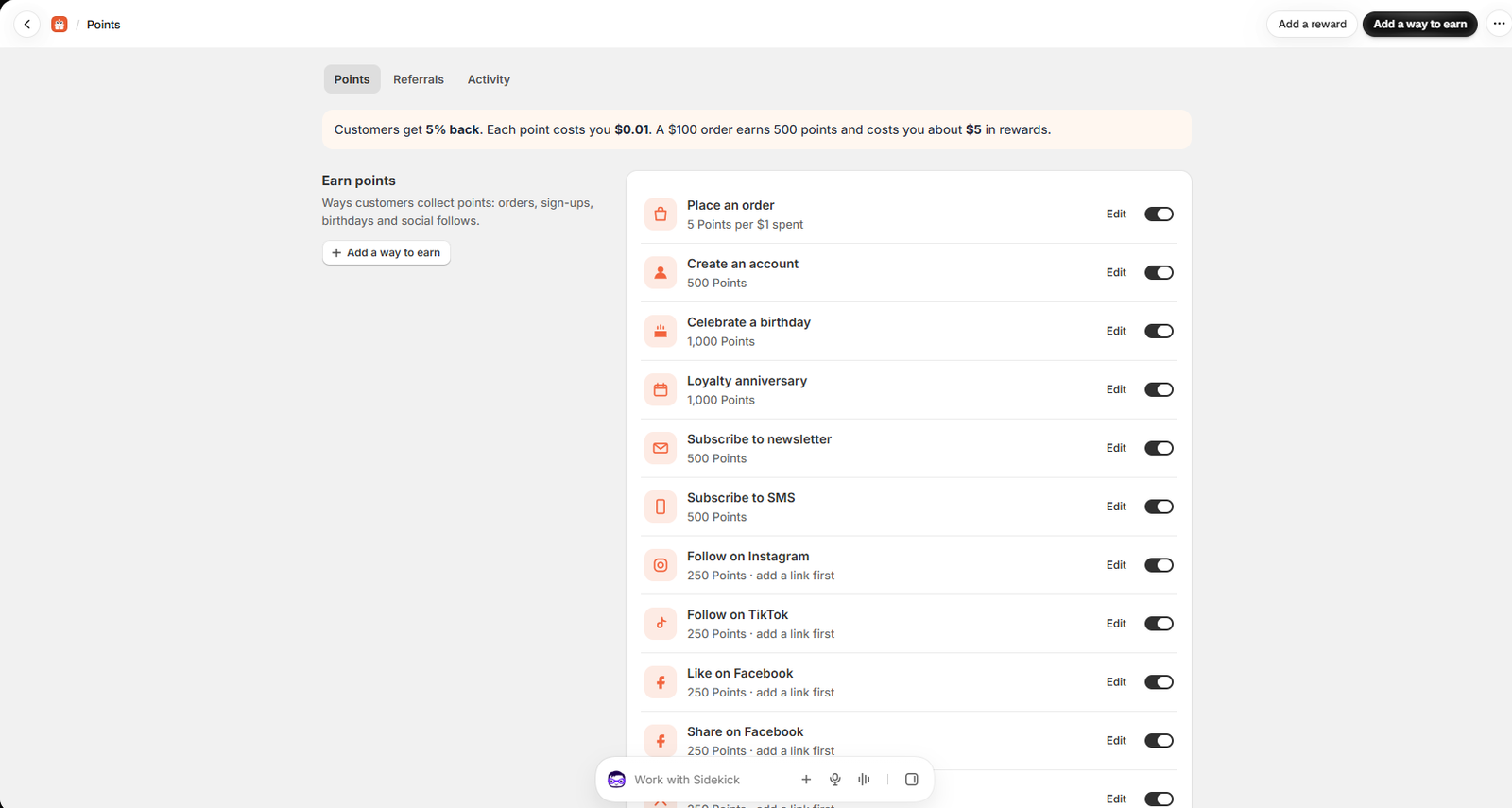
At the top, a summary shows what your program costs, for example: "Customers get 5% back. Each point costs you $0.01. A $100 order earns 500 points and costs you about $5 in rewards." It updates as you change your settings.
Ways to earn
Every way to earn has an on/off switch and an Edit button. Click Add a way to earn to add a new one.
| Way to earn | Default | How it works |
|---|---|---|
| Place an order | 5 points per $1 spent | Given when the order is paid. You can limit it to some collections and to online or in-store (POS) orders. |
| Create an account | 500 points | Given once, the first time the customer signs in. |
| Celebrate a birthday | 1,000 points | The customer adds their birthday in the rewards panel. Points arrive on the day. |
| Loyalty anniversary | 1,000 points | Given every year on the day the customer joined. |
| Subscribe to newsletter | 500 points | Given when the customer accepts email marketing. |
| Subscribe to SMS | 500 points | Given when the customer accepts SMS marketing. |
| Follow on Instagram / TikTok / X | 250 points | Add your profile link first. The customer clicks, visits your page and gets the points. |
| Like or share on Facebook, share on X | 250 points | Add your page or post link first. |
| Click a link | 250 points | Any link you choose, for example a WhatsApp group or an event page. |
| Custom action | You choose | Give points by hand from a customer's page. |
Default amounts are for a USD store. Perkly scales them to your store's currency during setup.
Editing a way to earn
- Click Edit next to the action.
- Change the points, the text customers see and, for social actions, the link.
- Click Save.
Social actions use the honour system: Shopify doesn't let any app check that someone followed you. Each one can only be earned once per customer.
A social action can't be switched on until it has a link. If you see "Enter a full link starting with https://", add your profile or page address.
How order points are counted
- Points are based on the order subtotal after discounts, without shipping, taxes or tips. You can change this in Settings > Platform.
- Points are rounded down to whole numbers.
- Points are added when the order is paid, not when it's placed.
- If an order is refunded, Perkly removes the points for the refunded amount. A cancelled order removes all of its points.
- Gift card purchases don't earn points by default.
Rewards
Click Add a reward to create one. Each reward becomes a real Shopify discount code when a customer redeems it.
| Reward type | Example |
|---|---|
| Points for money (customer chooses) | 100 points = $1 off. The customer picks how many points to use. |
| Amount off | 500 points = $5 off |
| Percentage off | 1,000 points = 10% off |
| Free shipping | 500 points = free shipping |
Each reward has these options:
- Name customers see: the name in the rewards panel and emails.
- Minimum order: the smallest order the code works on.
- Only for these collections: limit the discount to some collections.
- Only for shipping rates up to (free shipping only): the highest shipping price it covers.
- Code expires after (days): leave empty for codes that never expire.
- Combine with: whether the code works together with other order, product or shipping discounts.
What happens when a customer redeems
- The points are taken from their balance straight away.
- Perkly creates a one-time discount code that only this customer can use.
- The code appears in the rewards panel under Your rewards, with Copy and Apply buttons, and in a Reward redeemed email.
- If the code can't be created, the points are returned automatically.
You can refund an unused reward from the customer's page in Customers. The code is deleted and the points go back.
Program settings
Lower on the Program page you'll find:
| Setting | What it does |
|---|---|
| Points name (One / Many) | Rename your points, for example Coin / Coins or Star / Stars. |
| Points delay (days) | Points show as pending and become usable after this many days. Match it to your return window. 0 means right away. |
| Birthday must be saved this many days before | Stops customers adding a birthday the day before to claim points. |
| Skip birthday and anniversary points for inactive members | Only reward customers who have ordered recently. |
Activity
The Activity tab lists every points change in your store: points earned, rewards redeemed, refunds and manual adjustments.
Referrals#
With referrals, your customers share a personal link. Their friend gets a discount on their first order, and the customer who shared earns a reward when that order is paid.
Go to Program > Referrals.
How it works for shoppers
- A customer opens the rewards panel and copies their referral link, or shares it by email, WhatsApp, Facebook, X or text message.
- The friend opens the link. A welcome pop-up shows the gift, for example "Your friend gave you $10 off your first order".
- The friend claims the offer and gets a one-time discount code.
- When the friend's first order is paid, the customer who shared the link gets their reward and an email.
Settings
| Setting | What it does |
|---|---|
| Referrals on | Turns the whole referral program on or off. |
| Friend's reward | What the friend gets, for example $10 off their first order. |
| Your customer's reward | Points (or a discount) for the customer who shared the link. |
| Friend's order must be at least | The smallest first order that counts. |
| Friend must create an account to claim | Ask friends to sign up before they get their code. |
| Landing page | Where the referral link sends friends, for example / or /collections/best-sellers. |
| Share options | Which share buttons customers see. Copy link is always available. |
| Hold rewards for approval after this many in 24 hours | Protects you from abuse: rewards beyond this number wait for you to approve them. |
Fraud protection
Perkly blocks a referral automatically, and gives no reward, when:
- The friend is the same person as the customer who shared (same email or customer account).
- The friend has ordered from your store before.
- The friend used the same browser or shipping address as the customer who shared.
You can see every referral, with its status (claimed, completed, blocked or held) on the customer's page in Customers, and approve or block it by hand.
Referral results
The Referrals page shows results for the last 7, 30 or 90 days:
- Links shared
- Friend visits
- Rewards claimed
- First orders
- Referred revenue
Rewards panel and launcher#
Go to On-site content. This page lists every place Perkly can appear, grouped by On your store, Customer accounts and Checkout. Each card shows its status:
- Active: live on your store.
- Not added: click Set up to add it.
- Shopify Plus only: needs a Shopify Plus plan (see Checkout).
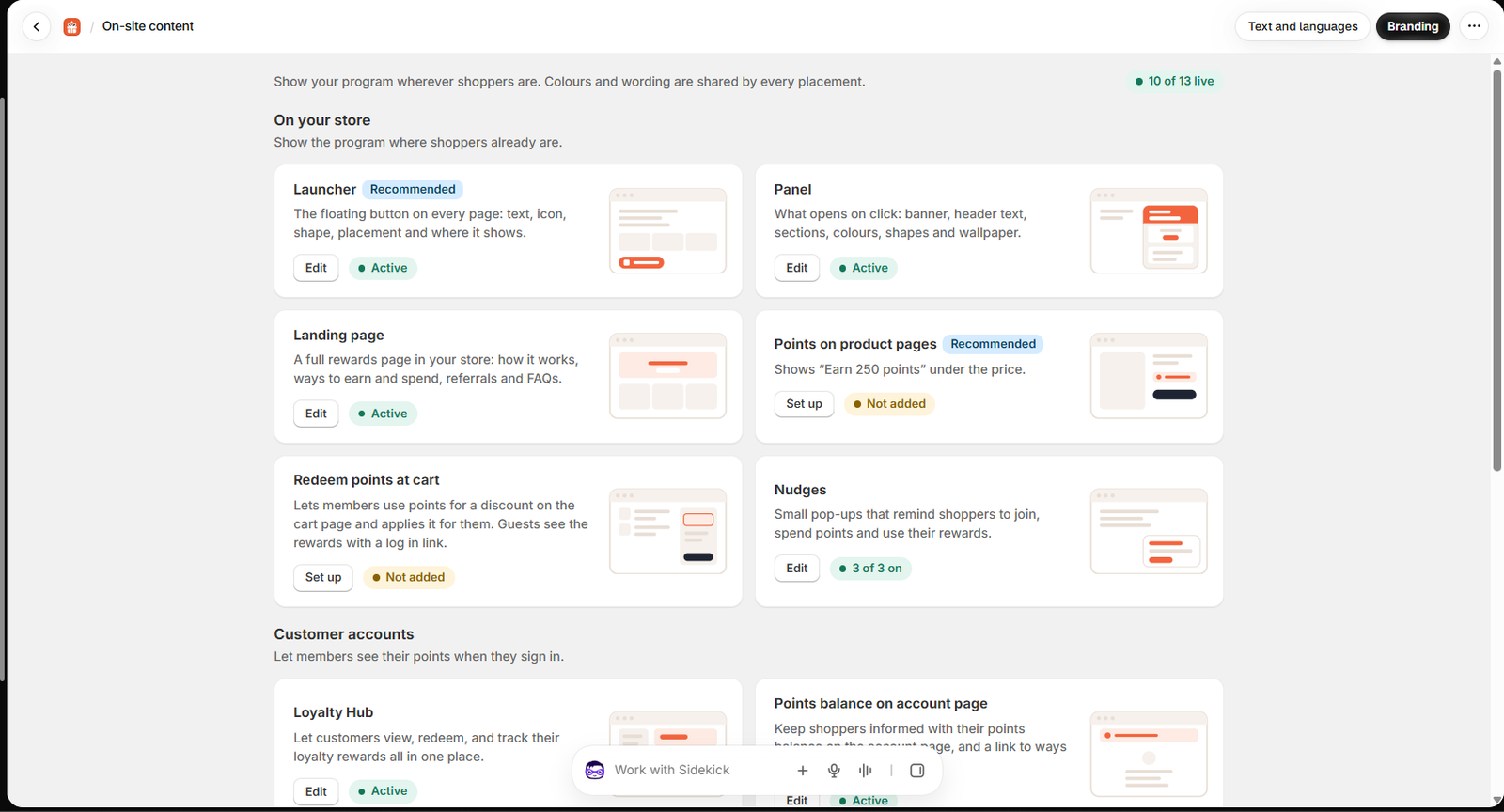
The Branding and Text and languages buttons at the top change colours and wording for every placement at once.
The launcher
The launcher is the floating Rewards button. Clicking it opens the rewards panel.
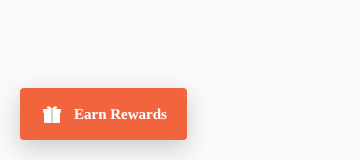
Go to On-site content > Launcher to change:
- Show the rewards panel on my store: turn the whole panel off without uninstalling.
- Button text for desktop and for mobile.
- Icon: pick a built-in icon or upload your own.
- Shape, Position (left or right), Side spacing and Bottom spacing, set separately for desktop and mobile.
- Background color and Font and icon color.
- Hide on the homepage, and a custom z-index if another app's button sits on top of it.
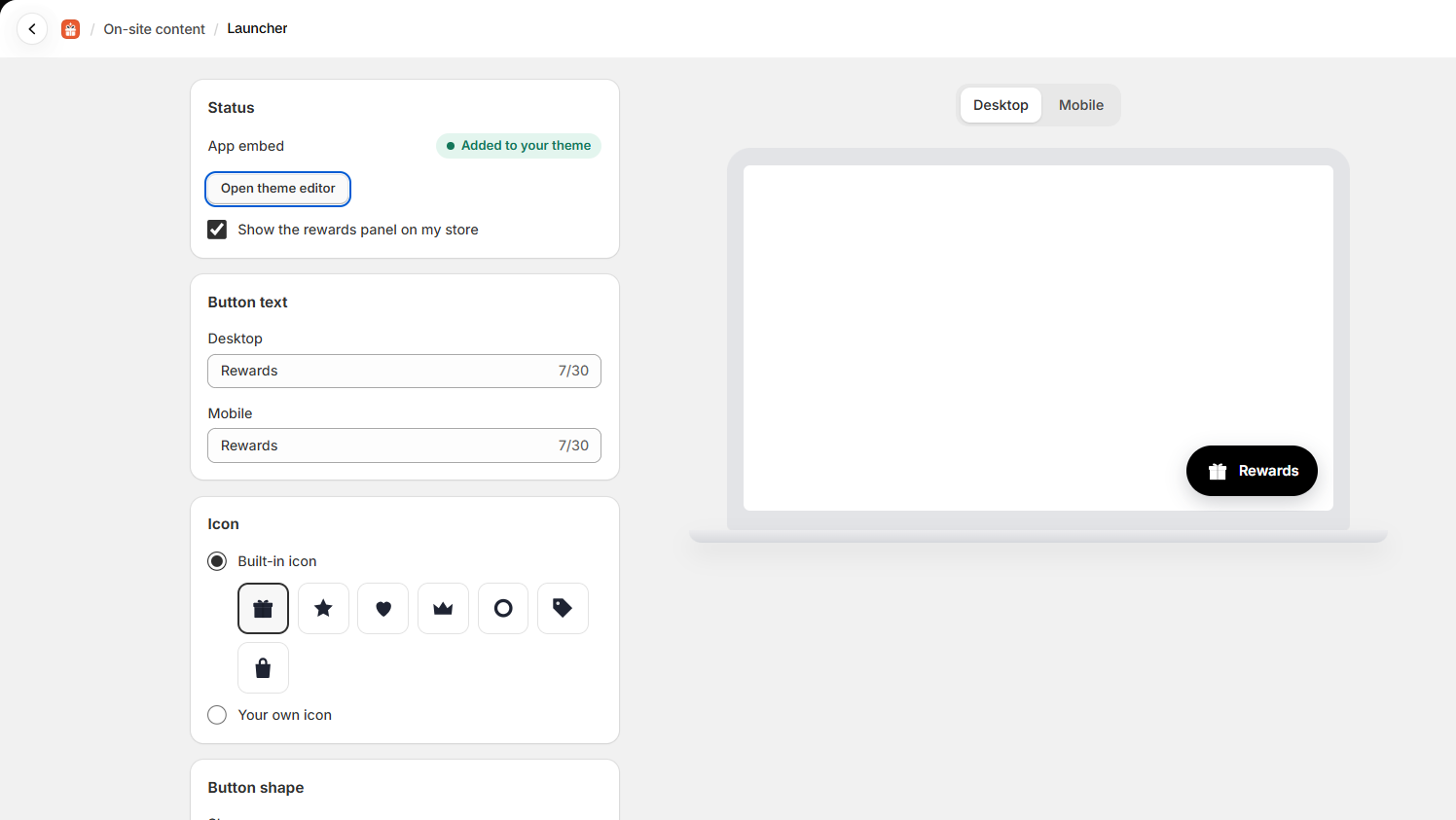
The preview on the right updates as you edit. Switch between Desktop and Mobile.
The rewards panel
The panel is what shoppers see when they open the launcher. It changes depending on who is looking.
Guests see your program name, Join now and Sign in buttons, ways to earn, ways to redeem and your referral offer.
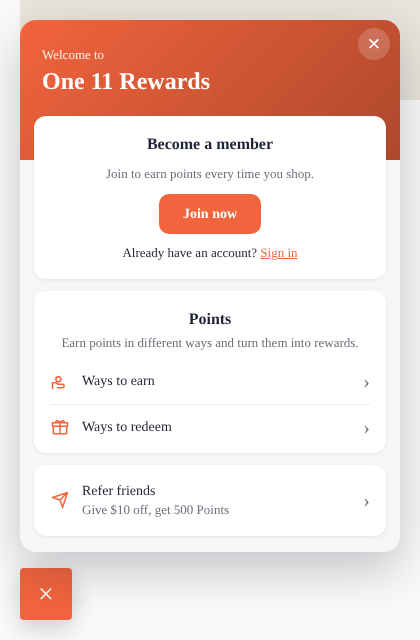
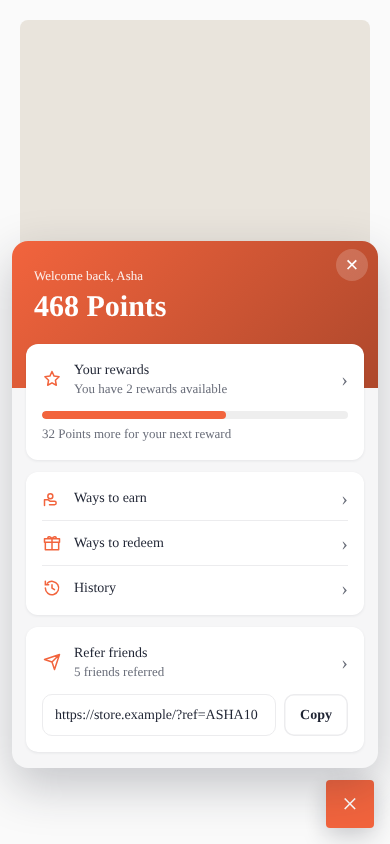
Signed-in customers see their balance, progress to the next reward, their unused rewards, ways to earn and redeem, their points history and their referral link.
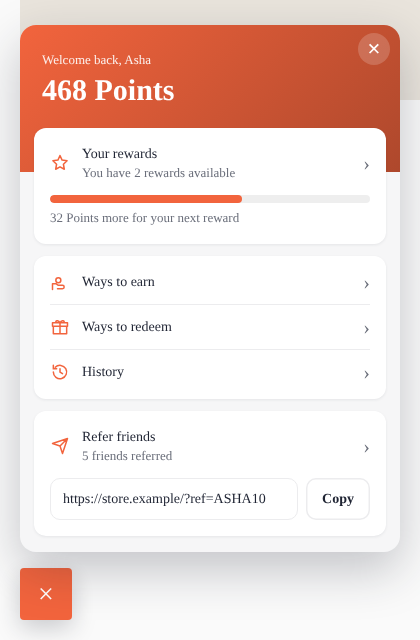
On phones the panel opens full width.
Go to On-site content > Panel to change:
- Banner image and Brand icon.
- The header text for guests and for signed-in customers (caption, program name, title, description, sign-in text and button).
- Which part should open first.
- Style: font, colours for text, links, icons, cards, buttons and inputs, and a wallpaper.
Use Previewing as to switch between the guest and signed-in views.
Opening the panel from a link or menu
You can open the panel from anywhere on your store, for example a menu item or a button:
- Link to
#perklyto open the panel on the current page. - In Online Store > Navigation, add a menu item called Rewards that links to
#perkly.
Landing page
The landing page is a full rewards page on your store at https://your-store.com/apps/perkly. It explains how your program works, with ways to earn, rewards, referrals and FAQs.
- Go to On-site content > Landing page and click Create landing page.
- Use the editor to show, hide and edit each section: header, how it works, earning and redeeming highlights, ways to earn, ways to spend, referrals and FAQ. Global settings cover colours, fonts, button shape, spacing and page width.
- Click Publish. You can unpublish it any time.
The editor saves your draft automatically. Shoppers only see changes once you publish.
Nudges
Nudges are small pop-ups that remind shoppers about your program at the right moment.
| Nudge | When it shows |
|---|---|
| Join reminder | A new visitor's first visit: "Get 500 points for joining". |
| Spend points reminder | A signed-in customer with enough points for a reward. |
| Unused reward reminder | A signed-in customer with a reward code they haven't used. |
Each nudge has its own on/off switch, text, icon and button. Nudges don't show when a discount code is already applied.
Text and languages
Go to On-site content > Text and languages to change any wording shoppers see. Perkly has built-in text in 20 languages and shows the shopper's language automatically. See Settings > Language.
Product and cart blocks#
These two theme blocks put points where shoppers make decisions: under the price, and on the cart page.
Points on product pages
Shows a line like "Earn 250 Points with this purchase" on your product pages. It updates when the shopper picks another variant.
- Go to On-site content > Points on product pages.
- Click Add to theme. The theme editor opens on your product template with the block added.
- Drag the block to where you want it, usually under the price.
- Click Save.
Block settings in the theme editor
| Setting | Options |
|---|---|
| Layout | Text line, Info row, Bordered box, Callout or Promo banner. |
| Message | Your own text. Use {points} for the points amount. |
| Extra line | A second line, for example "Join our rewards to collect points on every order." You can show it to guests only. |
| Link | Open the rewards panel, go to sign up, or no link. You can change the link text. |
| Icon | Star, gift, coin, dollar, tag, crown, your own image or none. |
| Size and alignment | Small, medium or large; left, centre or right. |
| Colours | Text, accent, background and border. |
The block hides itself on gift cards, on products in collections that don't earn points, and when a product earns 0 points. In the theme editor it shows a note explaining why it's hidden.
Redeem points at cart
Lets signed-in customers pick a reward on the cart page. Perkly creates the code and applies it to the cart, and the discount carries on into checkout.
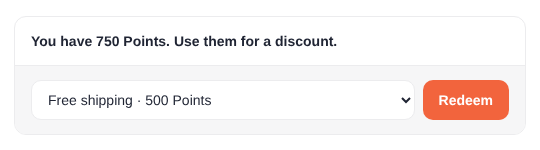
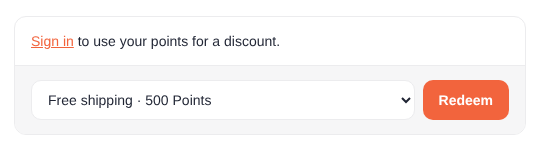
Guests see a sign-in link instead:
Add it to your cart page
- Go to On-site content > Redeem points at cart.
- Click Add to theme. The theme editor opens your cart page with the block added next to the subtotal (or in a new Apps section).
- Drag it where you want it and click Save.
The status on the Perkly page changes to Added to your theme by itself.
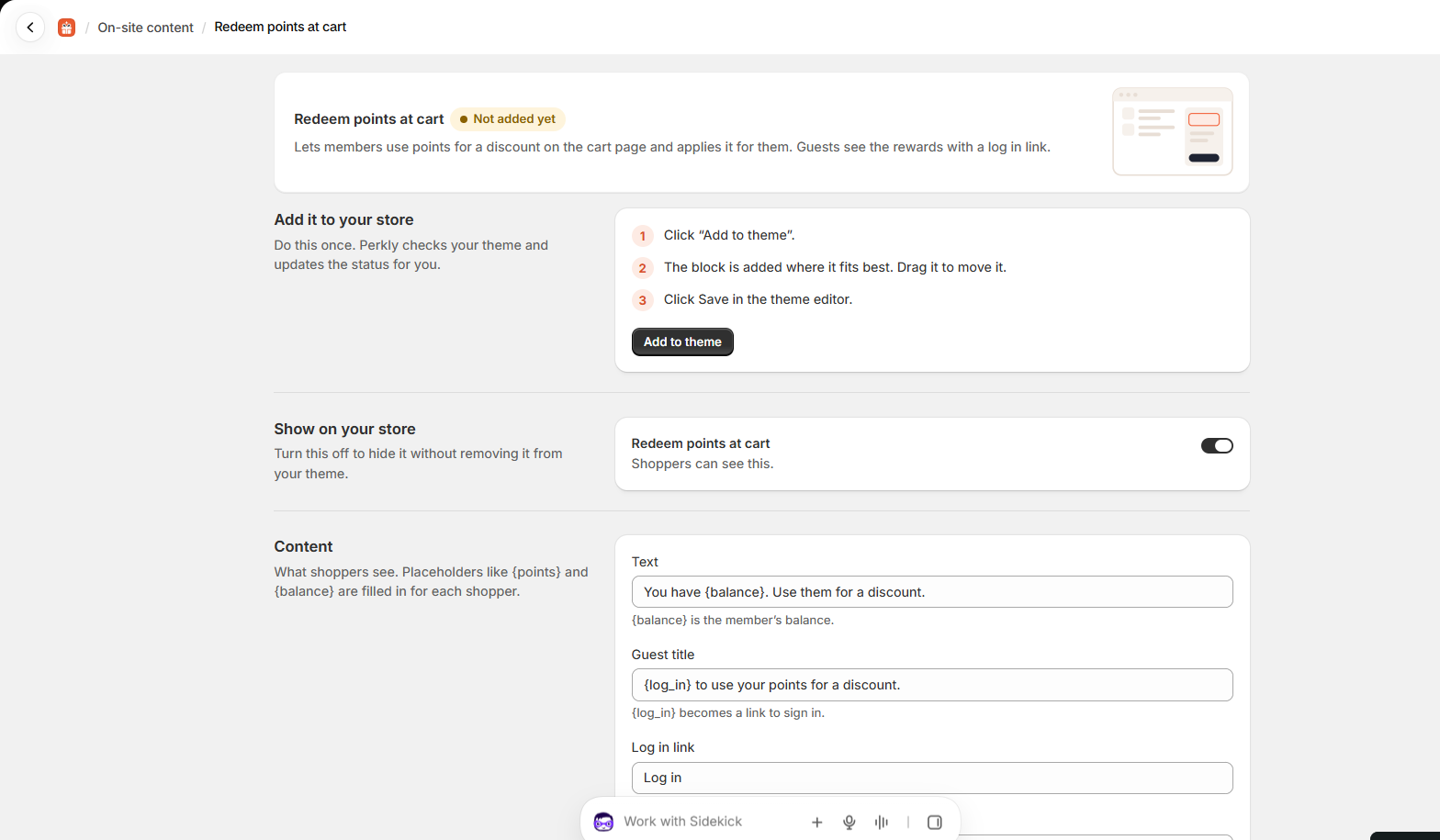
Text you can change
| Field | Default |
|---|---|
| Text | You have {balance}. Use them for a discount. |
| Guest title | {log_in} to use your points for a discount. |
| Log in link | Log in |
| Button | Redeem |
| Applied text | {reward} applied to your cart |
Cart drawers: if your theme opens a slide-out cart instead of the cart page, shoppers can still redeem from the rewards panel. The code is applied to their cart the same way.
Use Show on your store to hide the block without removing it from your theme.
Customer accounts#
Perkly adds three blocks to Shopify's customer accounts, so signed-in customers can see their points without opening the rewards panel. They work on every Shopify plan.
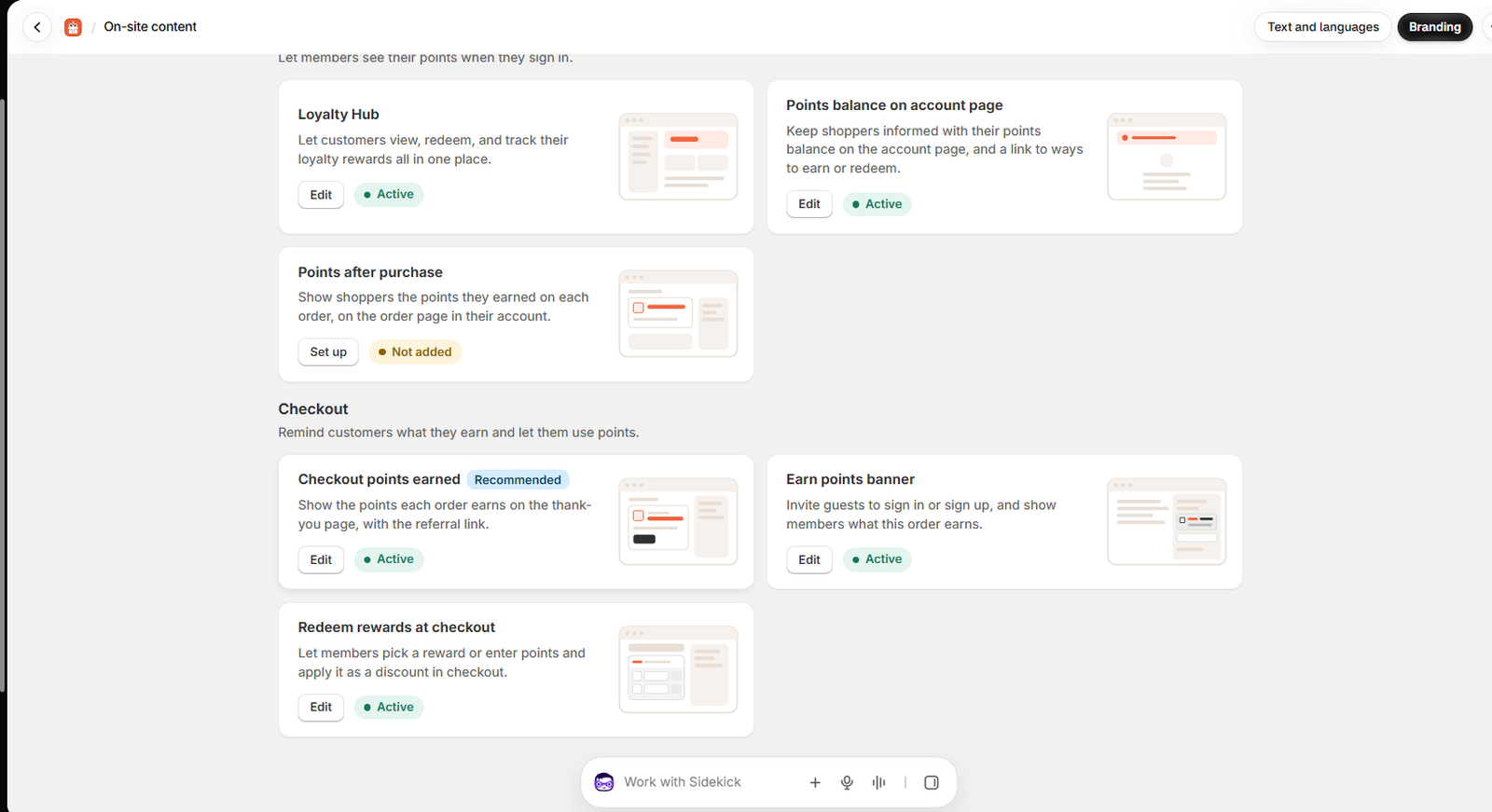
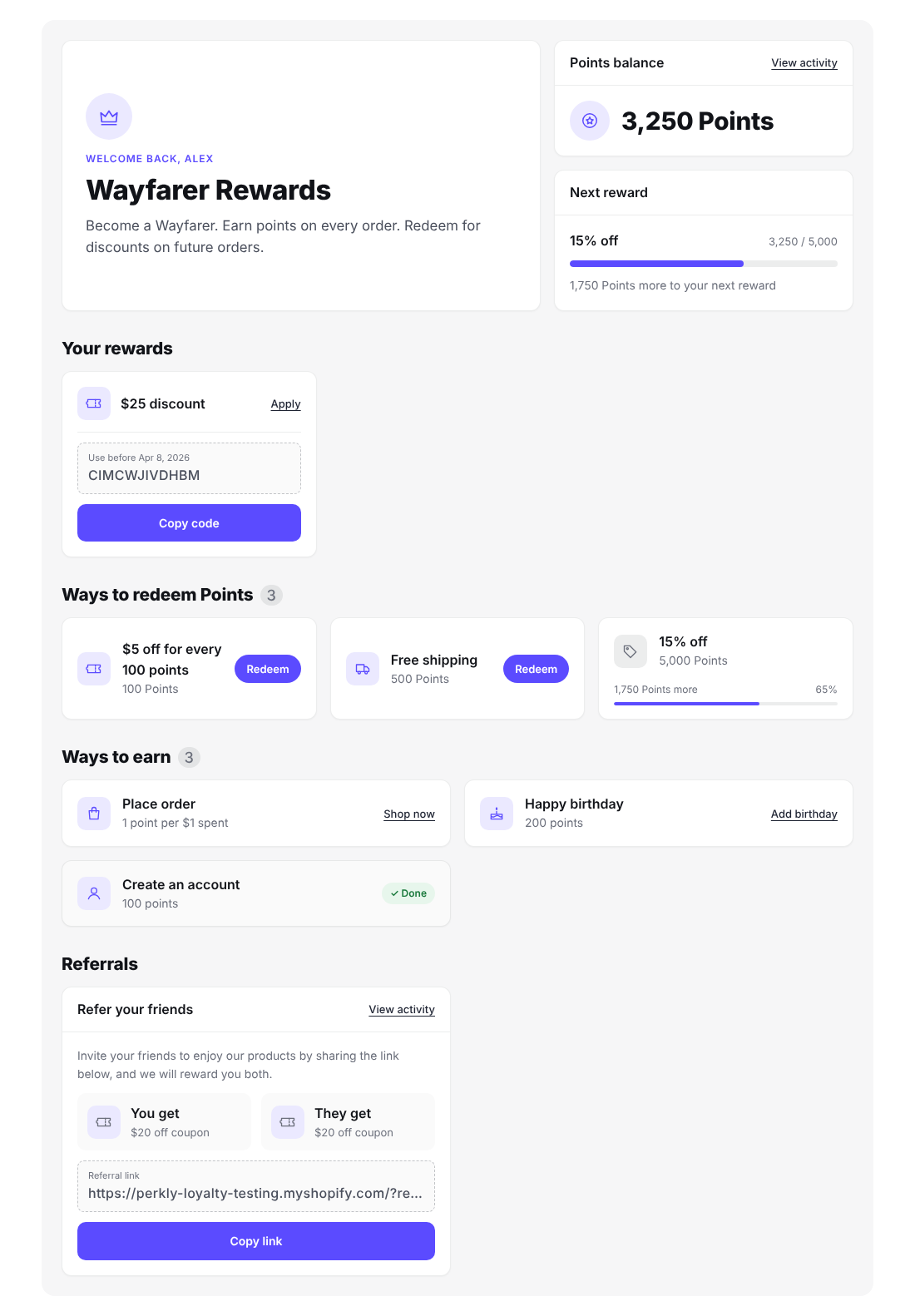
Loyalty Hub
A full Rewards page inside the customer's account, next to Orders and Profile. Customers see their balance, progress to the next reward, their reward codes, ways to redeem, ways to earn and their referral link.
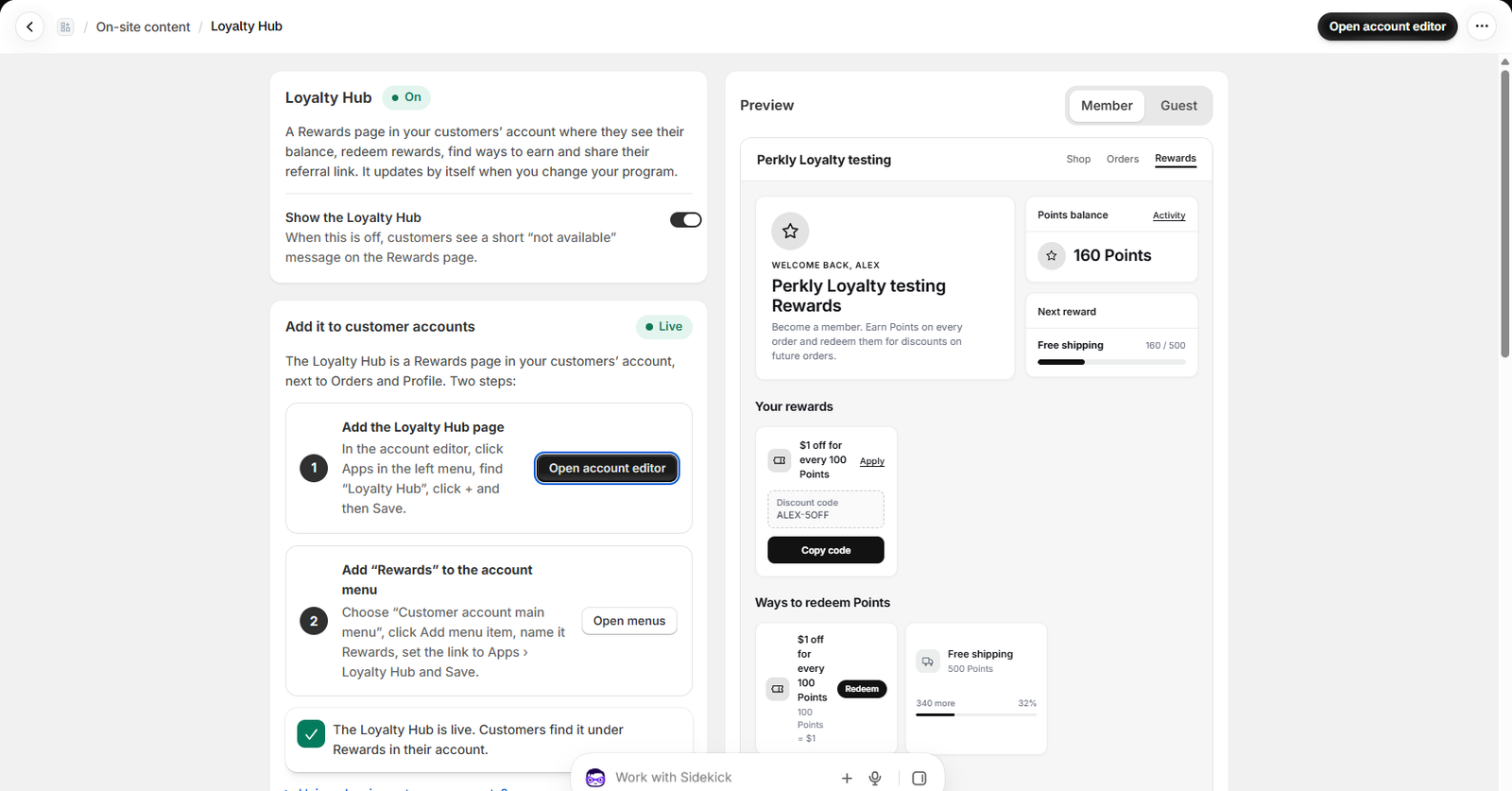
Add the Loyalty Hub
- Go to On-site content > Loyalty Hub.
- Add the Loyalty Hub page: click Open account editor. In the editor, click Apps in the left menu, find Loyalty Hub, click + and then Save.
- Add "Rewards" to the account menu: click Open menus. Choose Customer account main menu, click Add menu item, name it Rewards, set the link to Apps > Loyalty Hub and click Save.
When it's live, the page shows "The Loyalty Hub is live. Customers find it under Rewards in their account."
Use Show the Loyalty Hub to switch it off. Customers then see a short "not available" message on the Rewards page.
You can edit every heading and line of text on the Loyalty Hub page. The Member and Guest tabs in the preview show both views.
Points balance on account page
A small banner at the top of the customer's account, for example "You've got 1,234 Points! Redeem them for rewards." with a link to the ways to redeem.
- Go to On-site content > Points balance on account page and click Open account editor.
- In the page menu at the top, choose Orders.
- Click Apps in the left menu, find Points balance on account page and click +.
- Drag it above the order list if you like, then click Save.
You can set different text for customers who already have a reward and for those who are still saving up.
Points after purchase
Shows the points a customer earned on each order, on the order page in their account (Shopify's Order status page). This is also the page customers reach from their order confirmation email.
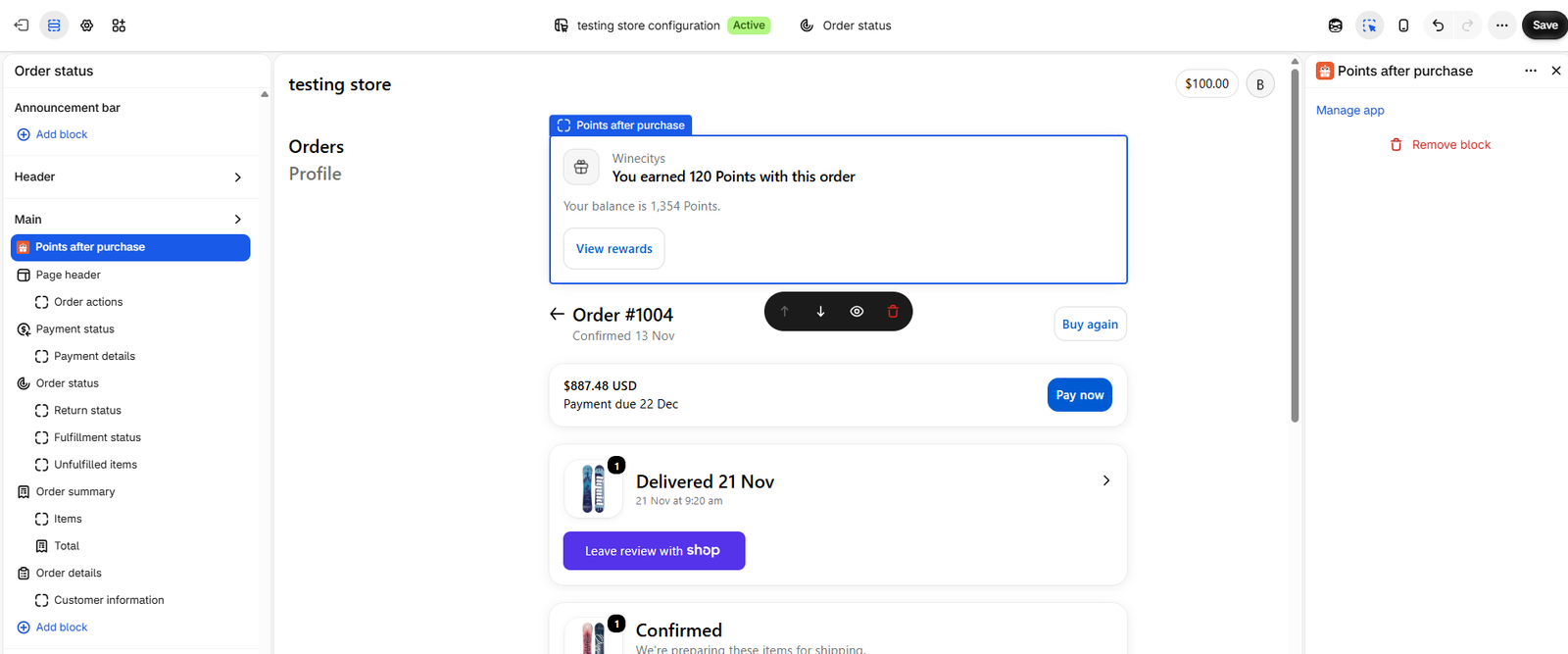
- Go to On-site content > Points after purchase and click Open account editor.
- In the page menu at the top, choose Order status.
- Click Apps in the left menu, find Points after purchase and click +.
- Click Save.
Before the order is paid it says "This order will earn you {points}". Once the points are added, it changes to "You earned {points} with this order" and shows the new balance.
Status
The status on each Perkly page changes to Live the first time the block loads, in your store or in the editor preview.
Checkout#
Perkly has three checkout blocks. Which ones you can use depends on your Shopify plan.
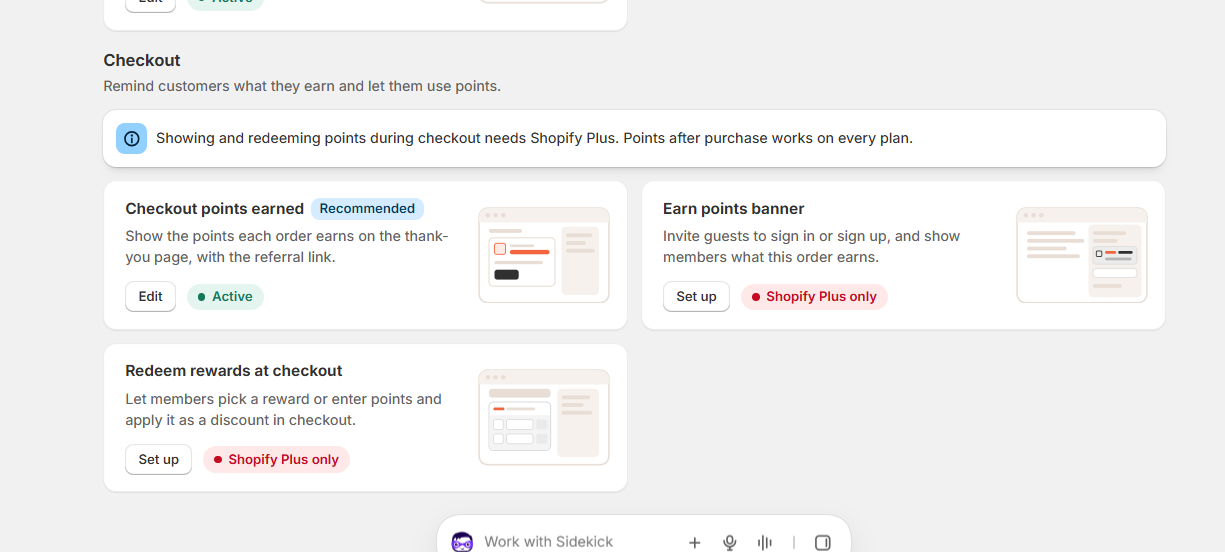
| Block | Where it shows | Plans |
|---|---|---|
| Thank you page points | The Thank you page, after payment | Every plan except Shopify Starter |
| Earn points banner | In checkout, above the discount field | Shopify Plus only |
| Redeem rewards at checkout | In checkout, for example at the top of the Contact step | Shopify Plus only |
Why Plus only? Shopify only lets apps add blocks inside the checkout steps (contact, delivery and payment) on Shopify Plus stores. On other plans, customers redeem in the rewards panel or the cart block, and the discount code carries into checkout automatically.
Thank you page points
Shows what each order earns right after payment, with the customer's referral link.
- Signed-in customers see "You earned {points} on this order!" and a link to your rewards.
- Guests see "This order can earn you {points}" and a Create account button to claim them.
Add it
- Go to On-site content > Thank you page points and click Open checkout editor.
- If the editor opens on Checkout, choose Thank you from the page menu at the top.
- Click Apps on the left and click + next to Thank you page points. When asked Add to, choose Thank you.
- Click Save.
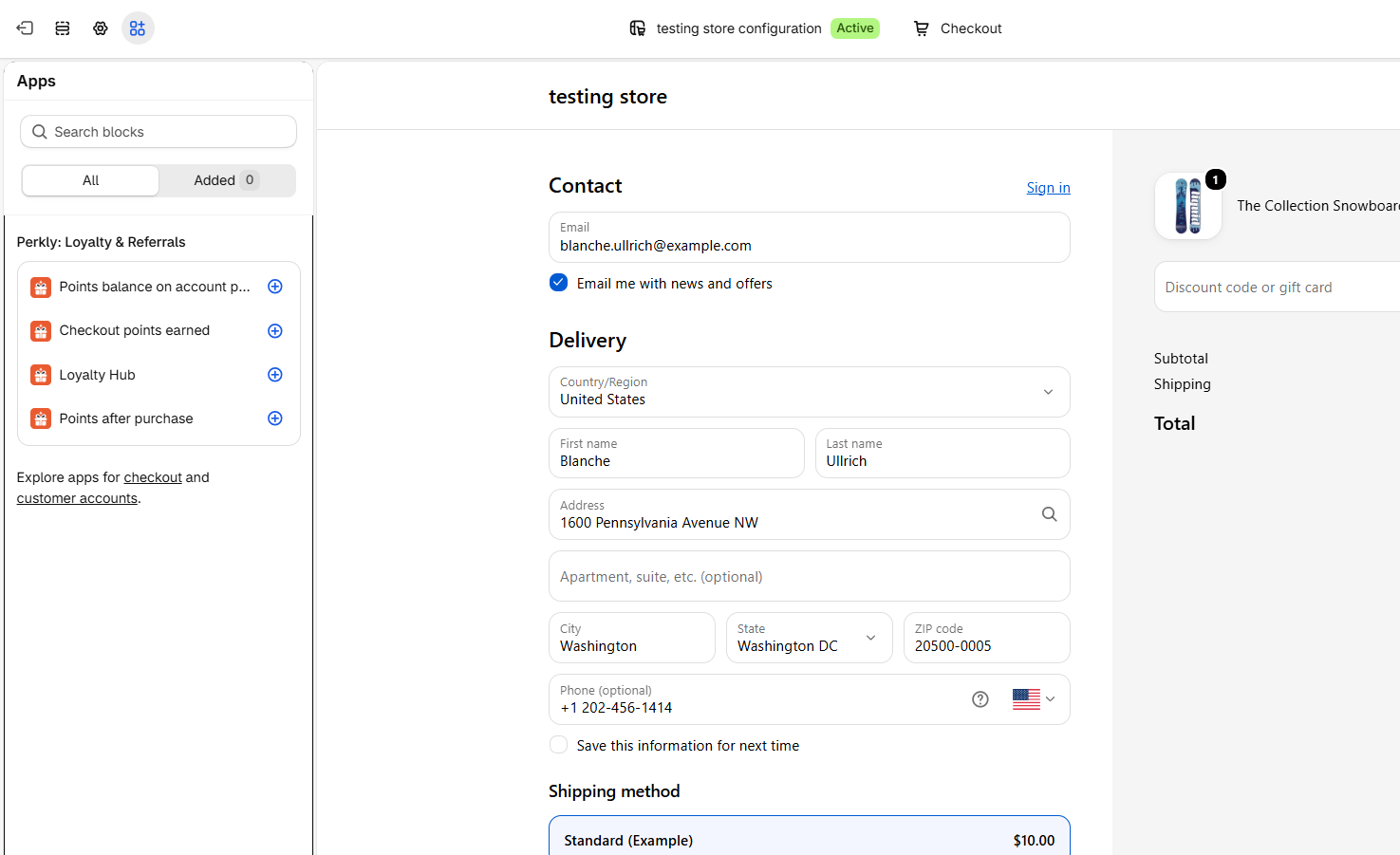
If you open the Apps list while on the Checkout page of a non-Plus store, you'll only see the blocks allowed on your plan. That's expected.
Earn points banner (Shopify Plus)
Invites guests to sign in or sign up ("Sign in or sign up to earn up to {points}") and shows signed-in customers what the order will earn.
- Go to On-site content > Earn points banner and click Open checkout editor.
- In the order summary, click Add app block above the discount field and choose Checkout Earn points banner.
- Click Save.
Redeem rewards at checkout (Shopify Plus)
Lets signed-in customers pick a reward or enter points, and applies the discount in checkout straight away. Guests see a log-in link.
- Go to On-site content > Redeem rewards at checkout and click Open checkout editor.
- Click Add app block where you want it, for example at the top of the Contact step, and choose Redeem rewards at checkout.
- Click Save.
Testing on a development store
To try the Plus-only blocks before going live, use a development store on the Shopify Plus plan. On other development stores, they won't appear in the checkout editor.
Customer emails#
Perkly sends automatic emails at the key moments of your program. They use your logo and colours, and every email has an unsubscribe link.
Go to Settings > Customer emails.
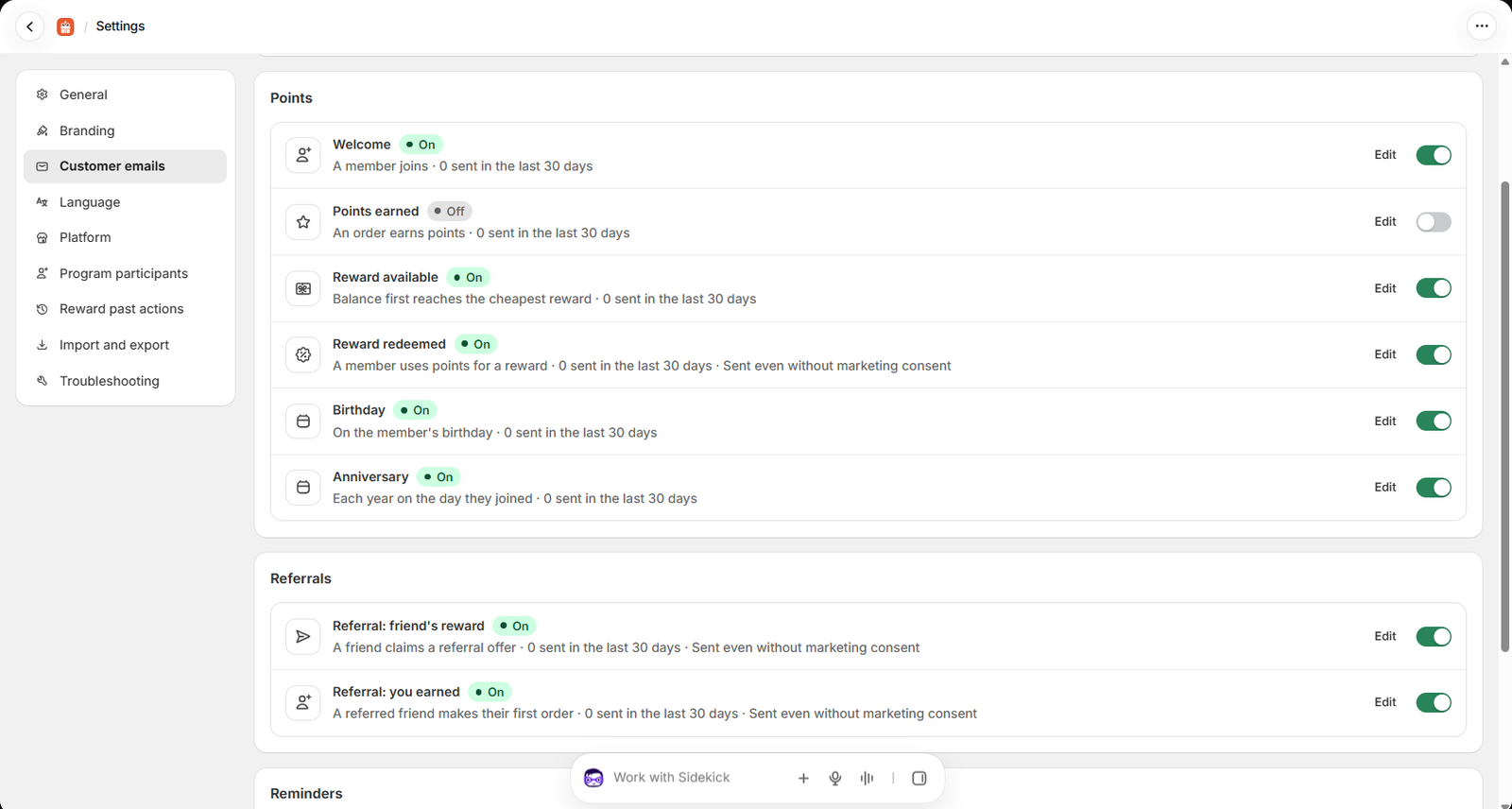
The emails
| When it's sent | On by default | |
|---|---|---|
| Welcome | A customer joins your program | Yes |
| Points earned | An order earns points | No |
| Reward available | A customer's balance first reaches your cheapest reward | Yes |
| Reward redeemed | A customer uses points for a reward (includes the code) | Yes |
| Reward expiring soon | An unused reward code is about to expire | Yes |
| Reward last chance | The day before an unused code expires | Yes |
| Birthday | On the customer's birthday | Yes |
| Anniversary | Each year on the day they joined | Yes |
| Referral: friend's reward | A referred friend claims their offer (includes the code) | Yes |
| Referral: you earned | A referred friend makes their first order | Yes |
Each row shows how many were sent in the last 30 days. Use the switch to turn an email on or off.
Edit an email
- Click Edit next to the email.
- Change the Subject, Title, Description and Button text. Click a variable under Variables (click to copy) to add things like the customer's name, points or reward code.
- Optionally add a Banner image for this email.
- Check the preview on the right, on desktop or mobile.
- Click Save.
To try it, enter an address in Send to and send a test email.
Email design
Settings > Customer emails > Email design sets the look of every email at once.
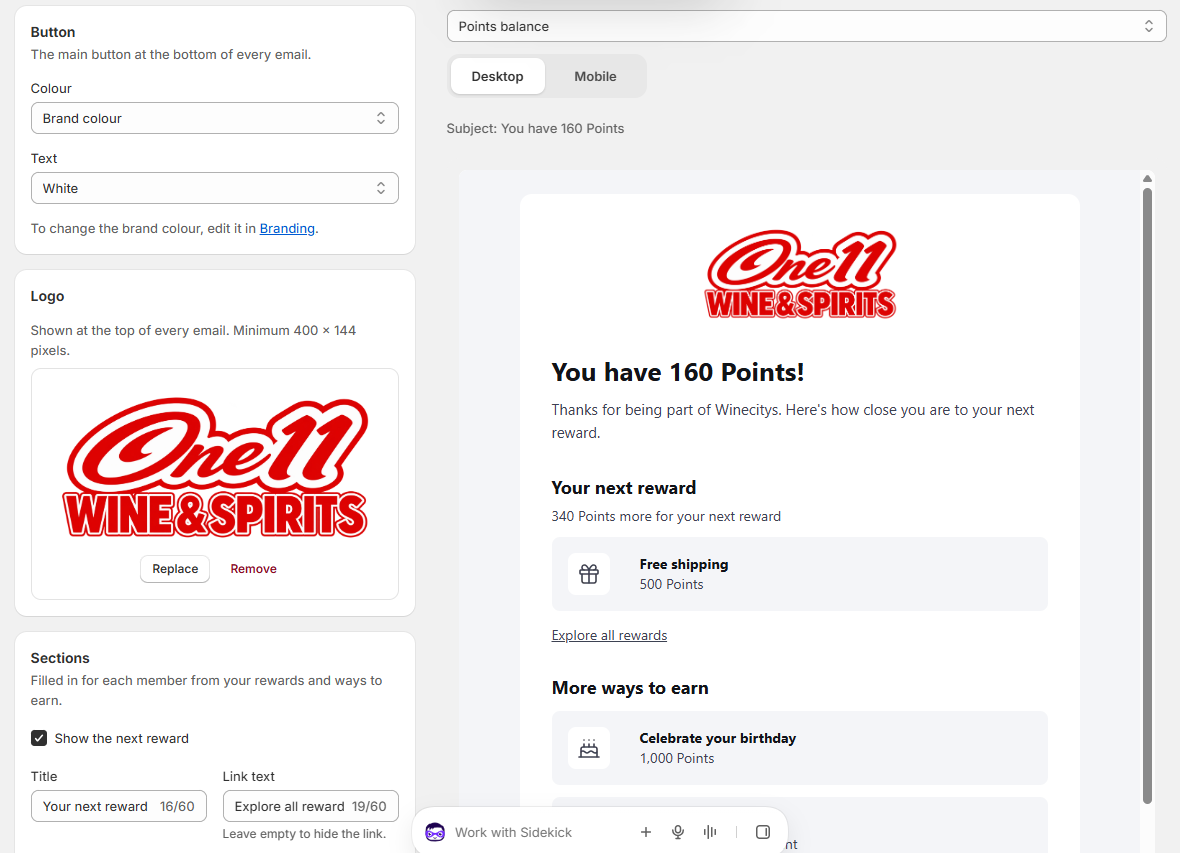
| Setting | Options |
|---|---|
| Button | Use your brand colour or a custom colour, with white, black or custom text. |
| Logo | Shown at the top of every email. At least 400 × 144 pixels. The logo saves as soon as it finishes uploading. |
| Sections | Show the next reward and more ways to earn, with your own titles and link text. |
| Style | Page background, heading, text and footer colours, text size and button roundness. |
Pick any email in Preview email at the top to see the design on it. Click Reset to the default design to start over.
Who gets emails
Turn on Only email customers who accepted marketing to send program emails only to customers who agreed to receive email marketing in Shopify. Reward codes and referral rewards are always sent, because customers need them to use what they earned.
Sender name and reply-to address are set in Settings > General.
Customers and analytics#
Customers
Go to Customers to see everyone in your program.
- Search by name or email.
- Filter by Customer type (members, guests, excluded), Points from / to, Orders at least and Joined since.
- Sort by balance, lifetime points, orders or join date.
- Select customers to add or remove points or exclude them in bulk.
A customer's page
Click a customer to see:
- Balance, Pending points (waiting for the points delay) and Lifetime earned.
- Points history: every points change with its reason.
- Rewards: their codes, with the option to refund an unused one. The code is cancelled and the points are returned.
- Referrals: friends they referred and each referral's status.
- Birthday: set or change it. Customers can only set it once themselves.
Actions at the top:
- Add or remove points: enter the amount and a Reason. Tick Customer can see the reason to show it in their points history.
- Exclude from program: the customer can't earn, redeem or refer. Use Add back to program to undo. Good for staff or wholesale accounts.
Analytics
Go to Analytics and pick a range: 7 days, 30 days, 90 days or 6 months.
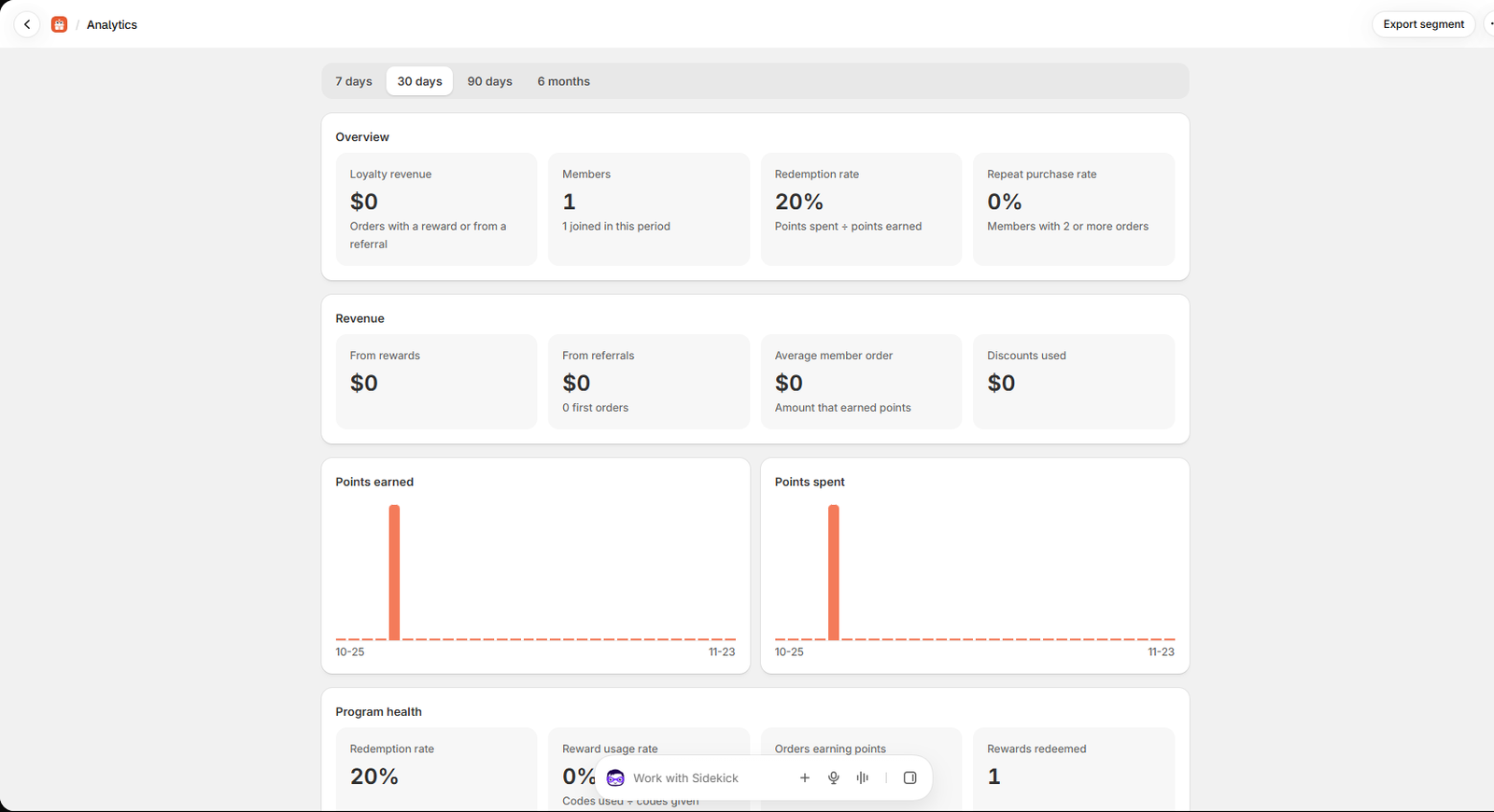
| Section | What it shows |
|---|---|
| Overview | Loyalty revenue (orders that used a Perkly reward or came from a referral), new members, redemption rate and repeat purchase rate. |
| Revenue | Revenue from rewards and from referrals, average member order and discounts used. |
| Points | Points earned and points spent over time. |
| Program health | Redemption rate, reward usage rate, orders earning points and rewards redeemed. |
Click Export segment to download customer lists as CSV, for example top earners or customers who can redeem now.
Settings#
Go to Settings in Perkly. The menu on the left lists every settings page.
General
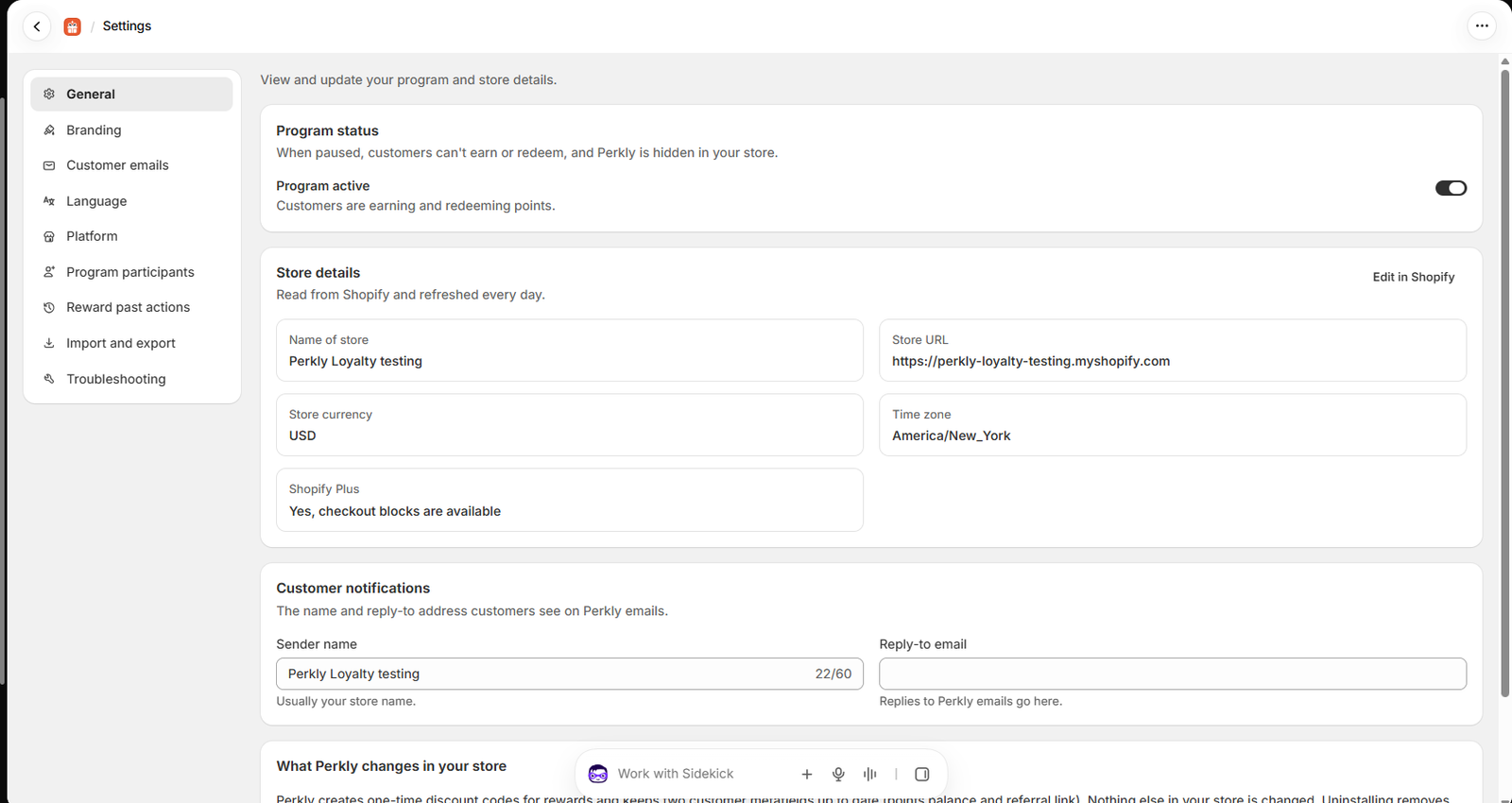
- Program status: turn Program active off to pause the program. While paused, customers can't earn or redeem and Perkly is hidden in your store.
- Store details: name, address, currency, time zone and whether you're on Shopify Plus. Read from Shopify and refreshed every day. Click Edit in Shopify to change them.
- Customer notifications: the Sender name and Reply-to email customers see on Perkly emails.
- What Perkly changes in your store: Perkly creates one-time discount codes for rewards and keeps two customer metafields up to date (points balance and referral link). Nothing else in your store is changed.
Branding
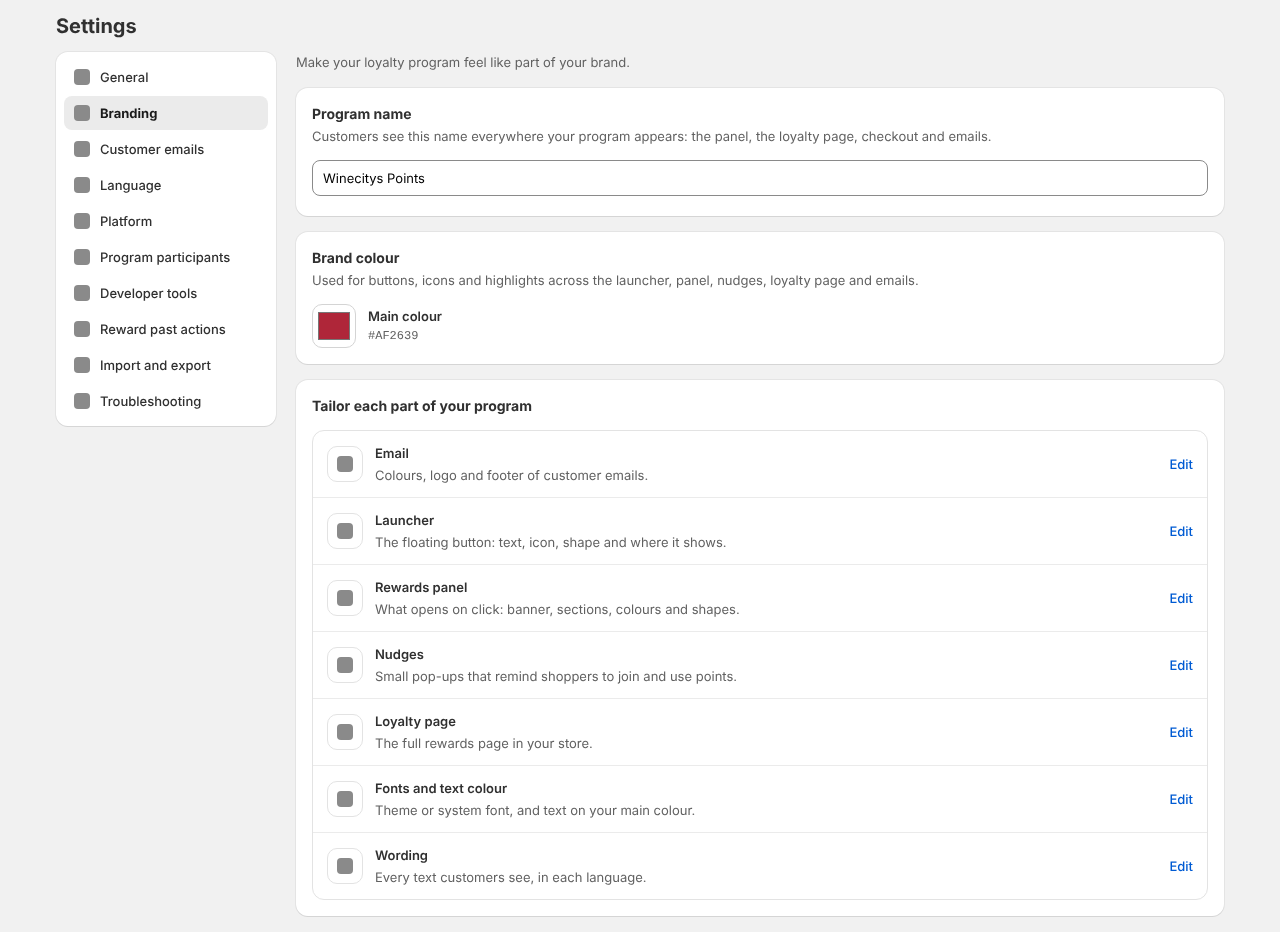
- Program name: shown in the rewards panel, landing page, checkout and emails.
- Brand colour: used for buttons, icons and highlights everywhere.
- Tailor each part of your program: shortcuts to the design of emails, launcher, rewards panel, nudges, landing page, fonts and wording.
Customer emails
Turn each email on or off and edit it. See Customer emails.
Language
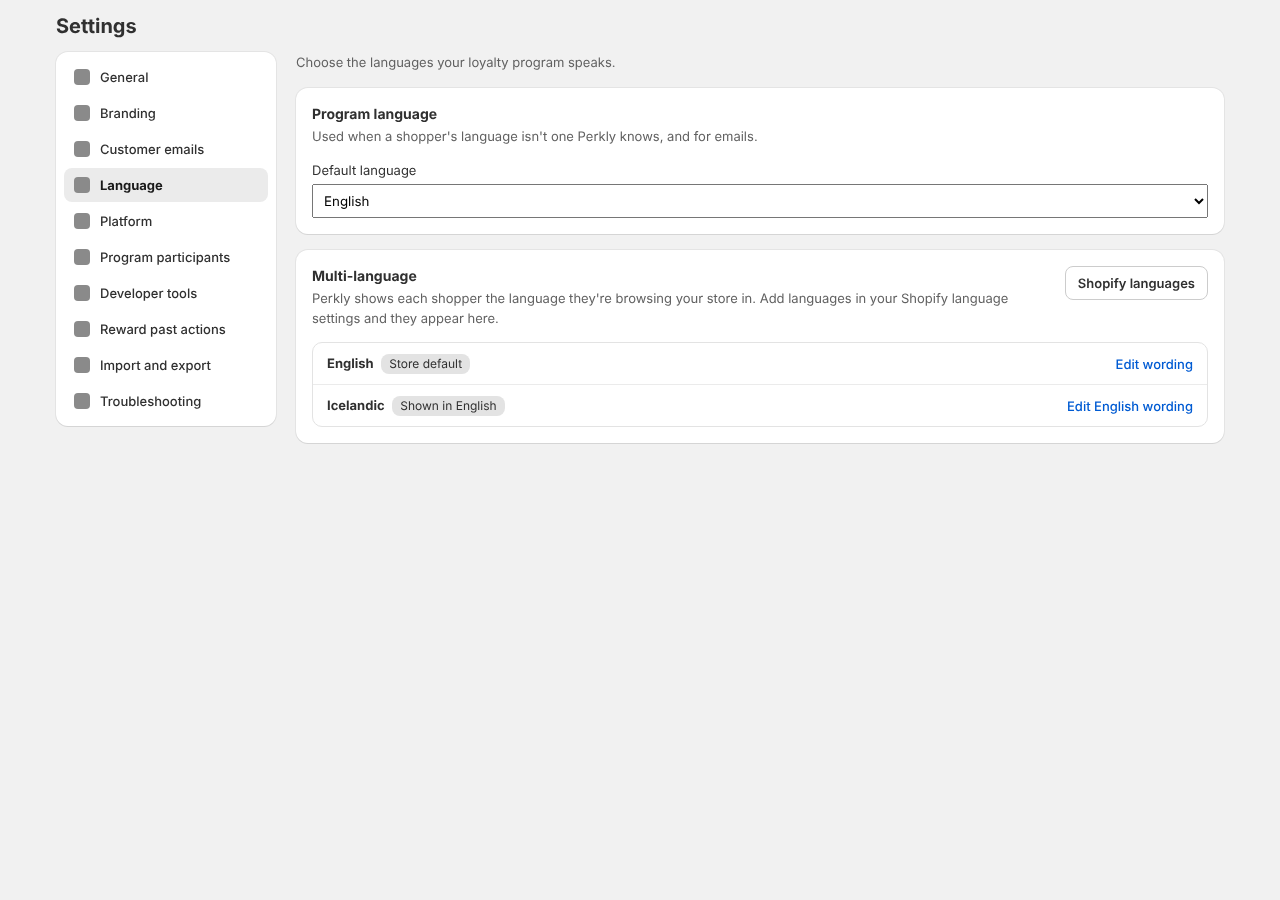
- Program language: the language Perkly uses when a shopper's language isn't one of yours, and for emails.
- Multi-language: Perkly shows each shopper the language they're browsing your store in. Add languages in Shopify languages settings; they appear here automatically.
- Click Edit wording to change the text for one language.
Perkly has built-in text in 20 languages: English, Hindi, Spanish, French, German, Italian, Portuguese (Brazil), Dutch, Japanese, Chinese (Simplified and Traditional), Korean, Arabic, Turkish, Polish, Swedish, Danish, Norwegian, Finnish and Czech.
Platform
Decide who and what earns points, and how orders are counted.
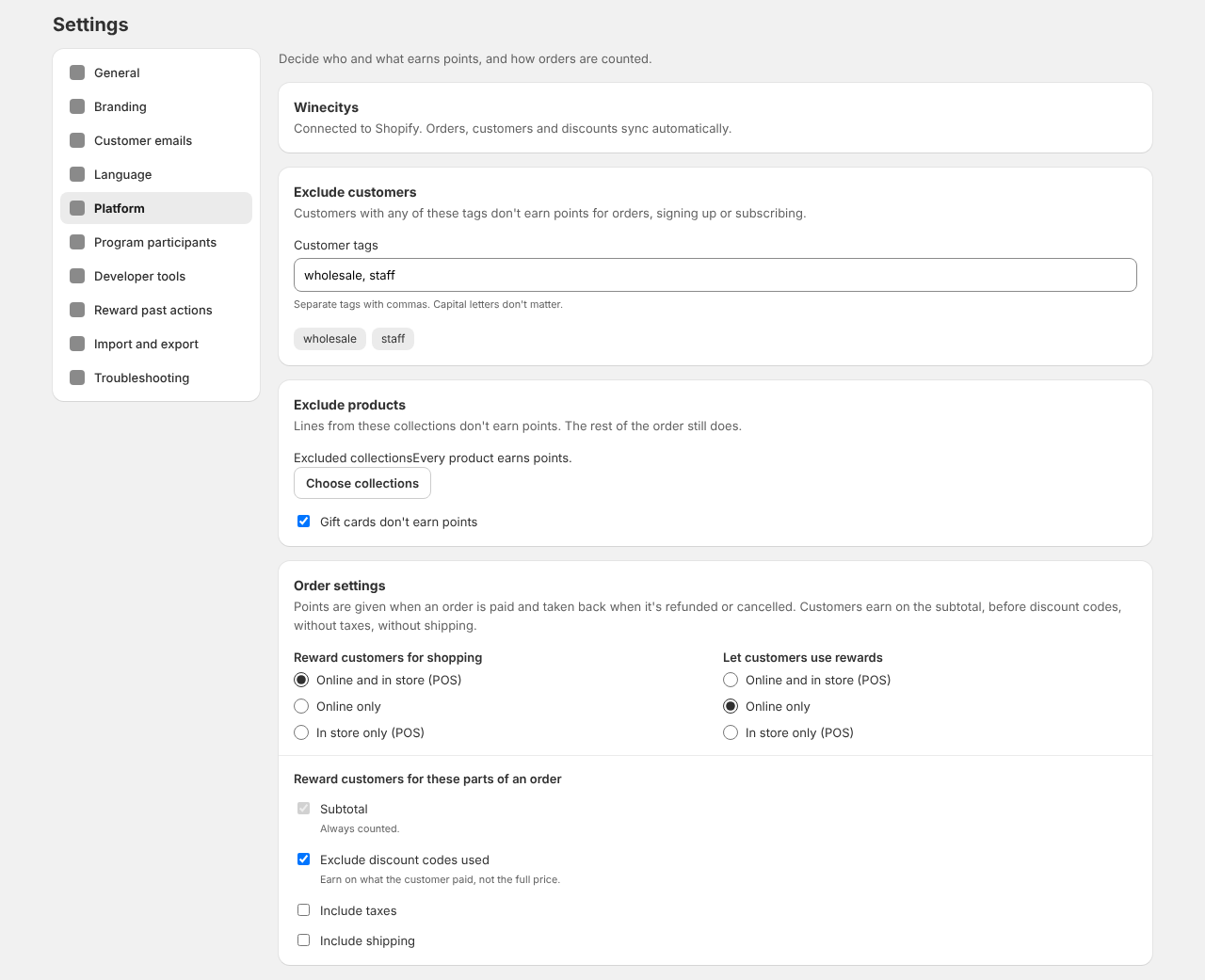
| Setting | What it does |
|---|---|
| Exclude customers | Customers with any of these tags don't earn points, for example wholesale, staff. |
| Exclude products | Products in these collections don't earn points. The rest of the order still does. |
| Gift cards don't earn points | On by default. |
| Reward customers for shopping | Online and in store (POS), online only, or in store only. |
| Let customers use rewards | Online and in store (POS), online only, or in store only. |
| Exclude discount codes used | Points are counted on what the customer paid, not the full price. |
| Include taxes / Include shipping | Count taxes or shipping towards points. |
Program participants
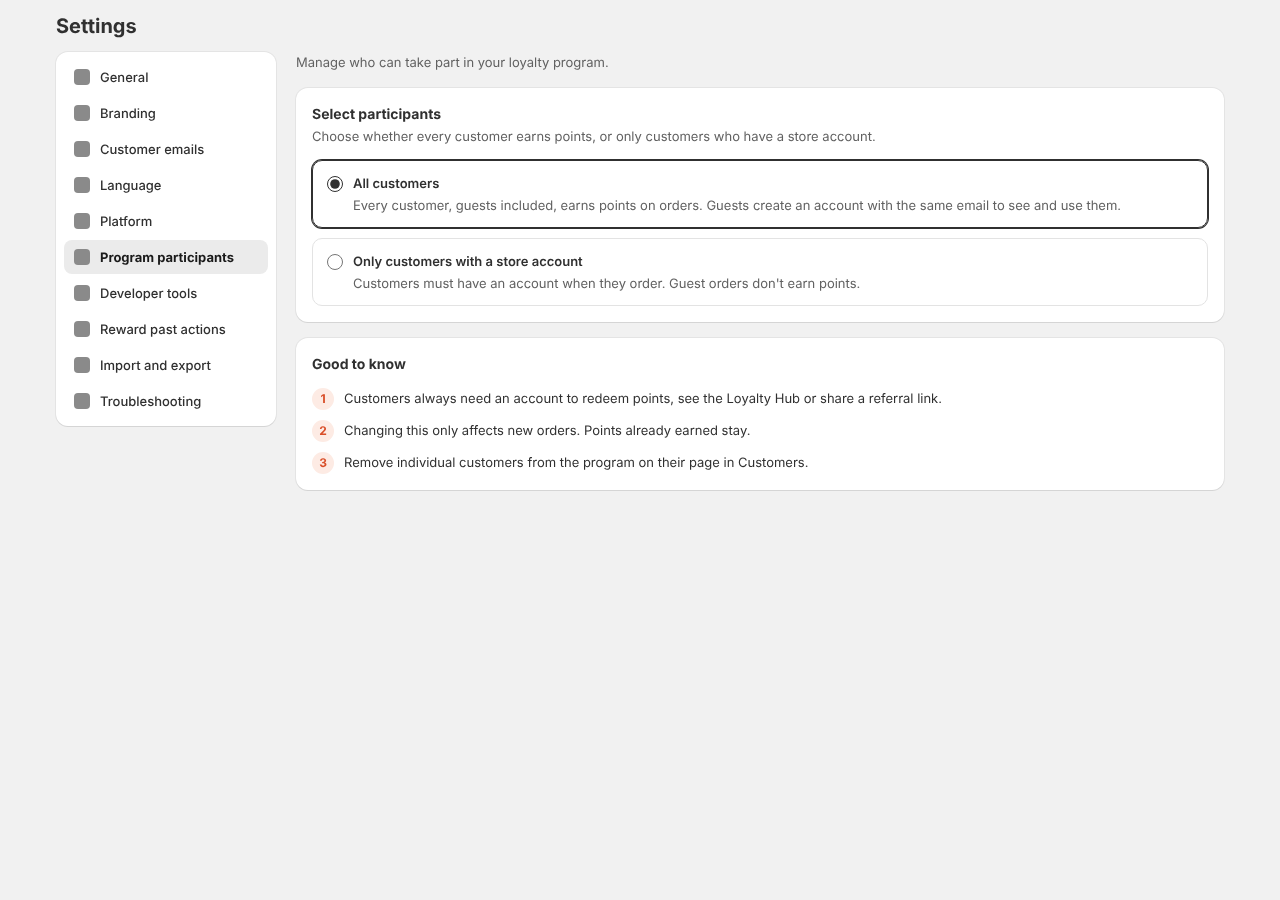
- All customers: every customer earns points, guests included. Guests are asked to create an account with the same email to spend them.
- Only customers with a store account: guest orders don't earn points.
Customers always need an account to redeem points, see the Loyalty Hub or share a referral link. Changing this only affects new orders.
Reward past actions
- Points for past orders: give points for orders placed before you installed Perkly, using your current earning rules. Shopify lets apps read the last 60 days of orders. Orders that already earned points are skipped, and no emails are sent.
- Customers who already have accounts: adds every customer with an account as a member and gives them the sign-up points (if that way to earn is on). No welcome emails are sent.
Import and export
- Import points: moving from another rewards app? Upload a CSV with the columns
emailandpoints(and an optionalnote). Points are added to what customers already have. - Export: download members, points activity, rewards, referrals and orders with a Perkly code as CSV files for Excel or Google Sheets.
Example import file:
email,points,note
jane@example.com,1200,Points from our old program
sam@example.com,450,
Troubleshooting
- Checks: Perkly checks the theme embed, order updates, discount codes, the store connection, permissions and program status each time you open this page. Anything that needs attention has a button to fix it.
- Tests: run these if customers can't see their points or rewards don't work.
- Tools: Recalculate balances rebuilds every balance from the points history. Safe to run any time; nothing is deleted.
FAQ and troubleshooting#
The Rewards button doesn't show on my store
- In Perkly, open Home and check that App embed shows Enabled. If not, click Open theme editor, turn on Perkly rewards under App embeds and click Save.
- In the theme editor, open the Perkly rewards embed and make sure Hide the floating button and Hide the floating button on mobile are off.
- Check that the program is active in Settings > General.
- Check On-site content > Launcher: Show the rewards panel on my store must be on, and Hide on the homepage off if you're testing on the homepage.
A customer didn't get points for an order
- Points are added when the order is paid. Pending or unpaid orders don't earn yet.
- If you set a points delay, the points show as pending until the delay ends.
- Check that the customer isn't excluded (by tag in Settings > Platform, or on their page in Customers).
- Gift cards and products in excluded collections don't earn points.
- If you chose Only customers with a store account, guest orders don't earn.
- Open Settings > Troubleshooting and run the checks.
Can customers redeem points in checkout?
On Shopify Plus, yes, with the Redeem rewards at checkout block. On other plans, customers redeem in the rewards panel or the cart block, and the discount code carries into checkout. See Points in checkout.
I can't find a Perkly block in the checkout editor
Make sure you're on the right page in the editor's page menu at the top:
- Thank you page points goes on the Thank you page.
- Points after purchase and Points balance on account page go on the customer account pages (Order status and Orders).
- Earn points banner and Redeem rewards at checkout only appear on Shopify Plus stores.
What happens to points if an order is refunded?
Perkly removes the points for the refunded amount. A cancelled order removes all of its points. If the customer already spent them, their balance goes to 0.
Do points expire?
Points don't expire. Reward codes can expire if you set Code expires after (days) on the reward.
Can I give or remove points by hand?
Yes. Open the customer in Customers and click Add or remove points. Add a reason and choose whether the customer can see it.
I'm moving from another loyalty app
Export your customers' balances from the old app, then use Settings > Import and export > Import points with a CSV of email and points.
What does Perkly change in my store?
Perkly only creates one-time discount codes for rewards and keeps two customer metafields up to date: points balance and referral link. It doesn't edit your theme code. Uninstalling removes the app embed and blocks.
What happens when I uninstall?
The rewards button and blocks disappear from your store straight away. Your program data is kept for 48 hours in case you reinstall, then Shopify asks Perkly to delete it and it's removed.
Get help#
Email support@optixfusion.com with your store address, a short description and a screenshot of what you see. We'll get back to you as soon as we can.
For how the app handles data, see our privacy policy.
Perkly is a Shopify app by Optixfusion. Shopify is a trademark of Shopify Inc.